Plan-Managed vs. Agency-Managed vs. Self-Managed: NDIS Invoicing Requirements Explained
Which fields your NDIS invoice must include - and who receives it - depends entirely on how your participant's plan is managed. There is no single
Plan-Managed vs. Agency-Managed vs. Self-Managed: NDIS Invoicing Requirements Explained
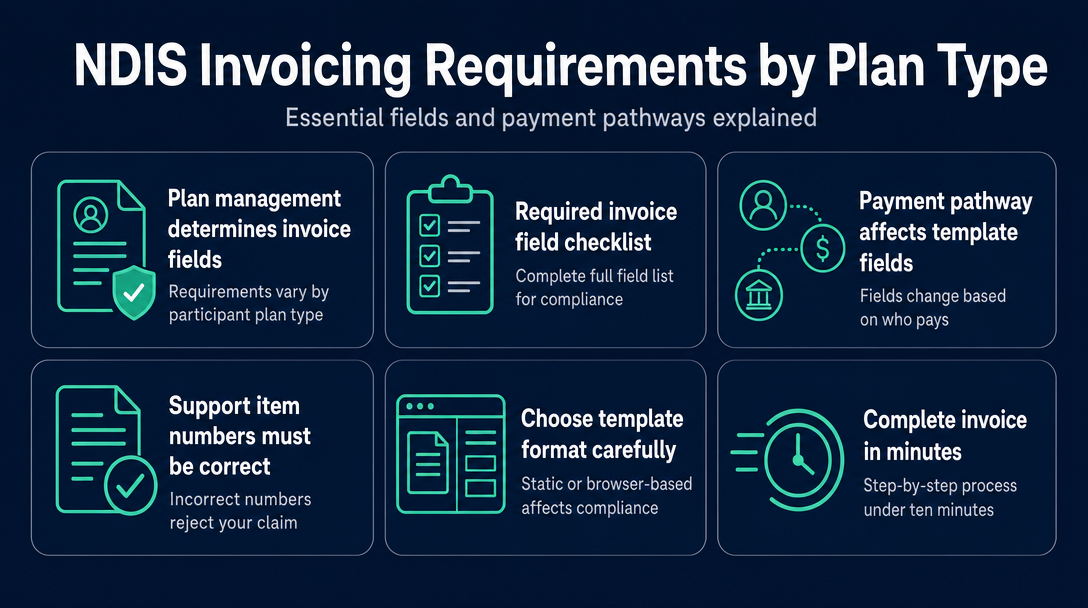
Which fields your NDIS invoice must include - and who receives it - depends entirely on how your participant's plan is managed. There is no single universal NDIS invoice template. The three funding management types (plan-managed, NDIA-managed, and self-managed) each create a different document structure, a different recipient, and different validation requirements. Getting that wrong is one of the most common reasons invoices are returned for correction.
This guide introduces the Payment Pathway Split framework: a practical way to understand that an NDIS invoice is not a fill-in-the-blank document but a pathway-specific claim that must be configured correctly before it leaves your hands.
What a Free NDIS Invoice Template Must Contain - The Full Field List
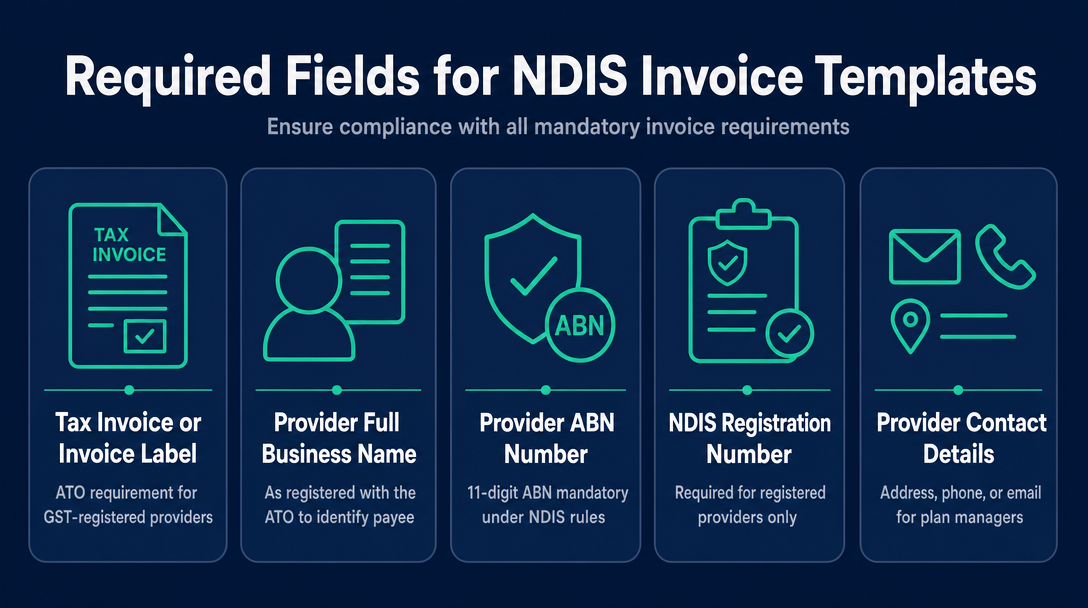
The following fields are required on a compliant NDIS invoice. Some are conditional on your registration status or payment pathway (explained in the next section). All are drawn from the NDIS Guide to Getting Paid and NDIS record-keeping requirements.
| Field | What to Write | Where to Find It | Why It Matters |
|---|---|---|---|
| "Tax Invoice" or "Invoice" label | See H3 below | N/A | ATO requirement for GST-registered providers |
| Provider full name or business name | As registered with the ATO | Your ABN registration | Identifies the payee |
| Provider ABN | Your 11-digit ABN | ABN Lookup (abr.gov.au) | Mandatory under NDIS rules unless exempt |
| NDIS registration number | Your provider registration number | NDIS Commission portal | Registered providers only - unregistered sole traders omit this field entirely |
| Provider contact details | Address, phone, or email | Your own records | Allows the plan manager or participant to reach you with queries |
| Participant full name | As it appears on their NDIS plan | Participant's plan or service agreement | Identifies the person the service was delivered to |
| Participant NDIS number | 9-digit number | Participant's plan or NDIS portal letter | Allows the plan manager or NDIA to locate the correct plan |
| Invoice number | Sequential, unique per invoice | Your own numbering system | Prevents duplicate payments; required for your records |
| Invoice date | Date the invoice is issued | Today's date | Establishes the payment timeline |
| Payment due date | Typically 14 days from invoice date | Agreed in your service agreement | Sets expectations; not mandated but strongly recommended |
| Service delivery date(s) | Date(s) each support was delivered | Your session notes | Must match your service records; NDIS requires you to keep records of supports delivered |
| Support item number | Code from the NDIS Support Catalogue | NDIS Support Catalogue | Identifies the specific support claimed |
| Support item description | Name of the support as listed in the catalogue | NDIS Support Catalogue | Confirms the support matches the code |
| Unit of measure | HR (hour), EA (each), D (day), etc. | NDIS Support Catalogue per item | Determines how the price is calculated |
| Quantity | Number of units delivered | Your session notes | Combined with unit price to produce line total |
| Unit price | Your agreed rate, at or below the NDIS price limit | NDIS Pricing Arrangements | Must not exceed the current price cap |
| Line total | Quantity x unit price | Calculated | What you are claiming for each support |
| GST amount or notation | "GST-free" or the GST amount if applicable | See H3 below | Required for tax compliance |
| Total amount payable | Sum of all line totals | Calculated | The amount you are requesting |
What "Tax Invoice" Actually Means for NDIS Providers
Most NDIS disability supports are GST-free under Australian tax law - meaning no GST is charged or collected. However, if you are registered for GST with the ATO, your document must still be labelled "Tax Invoice" because that label is an ATO requirement for any business registered for GST, even when the supply is GST-free.
If your annual turnover is below the $75,000 GST registration threshold, you are likely not registered for GST. In that case, labelling your document "Invoice" (rather than "Tax Invoice") is acceptable, and you note each line as GST-free. If you are unsure about your GST obligations, the ATO's guidance on GST registration is the authoritative source - or speak with a registered tax professional.
The Payment Pathway Split - How Your Template Fields Change Depending on Who Pays
The most consequential thing a free NDIS invoice template rarely tells you is this: the same list of fields does not apply the same way to every participant. The Payment Pathway Split means that before you fill in a single field, you need to know which of the three pathways applies - because that determines who receives your invoice, which fields are mandatory, and whether you can serve the participant at all.
Plan-Managed Participants
Your invoice goes to the participant's plan manager - not to the NDIA and not directly to the participant. Address the "Bill To" section to the plan manager's organisation, and include the participant's NDIS number so the plan manager can match the invoice to the correct plan.
Support item codes are critical here. Plan managers are required to reject invoices where the price exceeds the current NDIS price limit - this rule applies whether you are a registered or unregistered provider. Incorrect codes or above-cap prices will result in the invoice being returned. The good news for sole traders: you do not need to be a registered NDIS provider to invoice a plan-managed participant. You do not need to include an NDIS registration number on the invoice.
NDIA-Managed (Agency-Managed) Participants
This pathway works differently. You do not send a traditional invoice to anyone. Instead, you submit a payment request directly through the myplace provider portal or, for participants with newer plans, the PACE system - which is now used for all new and reassigned NDIS plans as the NDIA progressively transitions away from myplace. The portal or PACE interface is where you enter the support item code, service date, quantity, and price. That submission is what triggers payment.
A PDF or paper invoice is still worth creating for your records and to provide the participant with transparency about what was claimed - but the portal submission is the actual claim. This pathway is only available to registered providers. If you are an unregistered sole trader, you cannot serve NDIA-managed participants.
Self-Managed Participants
Your invoice goes directly to the participant (or their plan nominee). The participant then submits their own claim to the NDIA to reimburse themselves. This is the most flexible pathway: you do not need to be a registered provider, and the format requirements are the least prescriptive.
You still need your ABN, service dates, a description of the support, and the total charged. A support item code is best practice - it helps the participant with their own claim - but it is not strictly mandatory. Note that even though the participant handles the price-cap check when submitting their claim, you should still charge within the NDIS Pricing Arrangements. The NDIS requires all providers to charge within pricing arrangements and price limits, and unregistered providers remain bound by the NDIS Code of Conduct.
Payment Pathway Comparison
| Field or Requirement | Plan-Managed | NDIA-Managed | Self-Managed |
|---|---|---|---|
| Send invoice to | Plan Manager | Submit via myplace/PACE portal | Participant directly |
| Support item code required on invoice | Yes - critical | N/A (entered in portal) | Best practice, not mandatory |
| Price must be at or below NDIS price cap | Yes - plan manager must reject if over cap | Yes - portal enforces it | Yes - participant's responsibility to verify |
| Must be a registered provider | No | Yes | No |
| NDIS registration number on invoice | Not required | Required for portal access | Not required |
| Invoice recipient verifies the price | Plan manager | Portal system | Participant |
How to Read a Support Item Number - and Why Getting It Wrong Rejects Your Claim
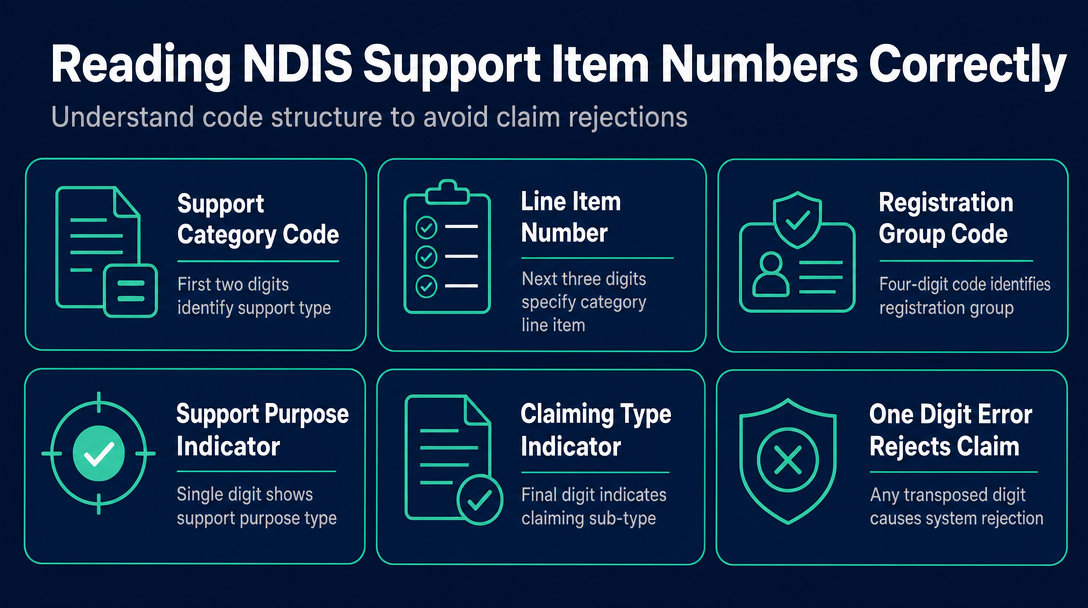
Competitors consistently tell you to "include a support item code" without explaining what the code actually means. Understanding the structure matters because a single transposed digit causes an immediate rejection from the portal or plan manager system.
A support item code from the NDIS Support Catalogue follows this pattern:
01_011_0107_1_1
Here is what each segment encodes:
01- Support Category (e.g., 01 = Daily Activities; 04 = Assistance with Social, Economic and Community Participation)011- The specific line item number within that category0107- Registration Group code1- Support Purpose indicator1- Claiming type or sub-type indicator
If any segment is wrong, the plan manager's system or the portal cannot match it to a valid, priced line item and will reject the claim. Critically, codes are updated each time the NDIS Pricing Arrangements are revised - a code that was valid in 2024-25 may have been retired or replaced in 2025-26. A static PDF or Excel template has no way to tell you that.
For step-by-step guidance on finding the right code in the first place, see our earlier guide "How to Find Your NDIS Support Item Code" - this section focuses on what the code means on the invoice itself, not how to locate it.
Static Template vs. Browser-Based Tool - What "Free" Actually Means for Compliance
A static template - whether that is a PDF, Excel spreadsheet, Word document, or Google Sheet - does several things well. It gives your invoice a professional structure, saves you re-typing your provider details each time, and produces a document that looks correct to a plan manager or participant.
What it cannot do is verify anything. It cannot check whether the support item code you typed exists in the current Support Catalogue. It cannot warn you that the price you entered exceeds the NDIS price limit for that item. It cannot flag that you have used a weekday rate for a Saturday delivery (weekend rates differ significantly). It cannot tell you that a code was retired three months ago.
This is the hidden compliance gap in static templates: you can fill one in correctly by format and still submit a wrong code or an above-cap price. The invoice looks right and gets sent. The plan manager or portal rejects it. You chase the correction. Payment is delayed.
NDIS Invoice addresses this directly. It is a free, browser-based tool that validates every line item against the current NDIS Pricing Schedule before you finalise your invoice - catching outdated codes, above-cap prices, and wrong day/time classifications in real time. All processing happens locally on your device; no data is sent to a server. That matters for participant privacy and for providers who are cautious about where sensitive plan information goes.
If you want a full comparison between free browser tools and paid practice management software subscriptions, the prior article "Free NDIS Invoice Tools vs. Subscription Software" covers that decision in detail.
Step-by-Step: Complete Your NDIS Invoice Template in Under 10 Minutes
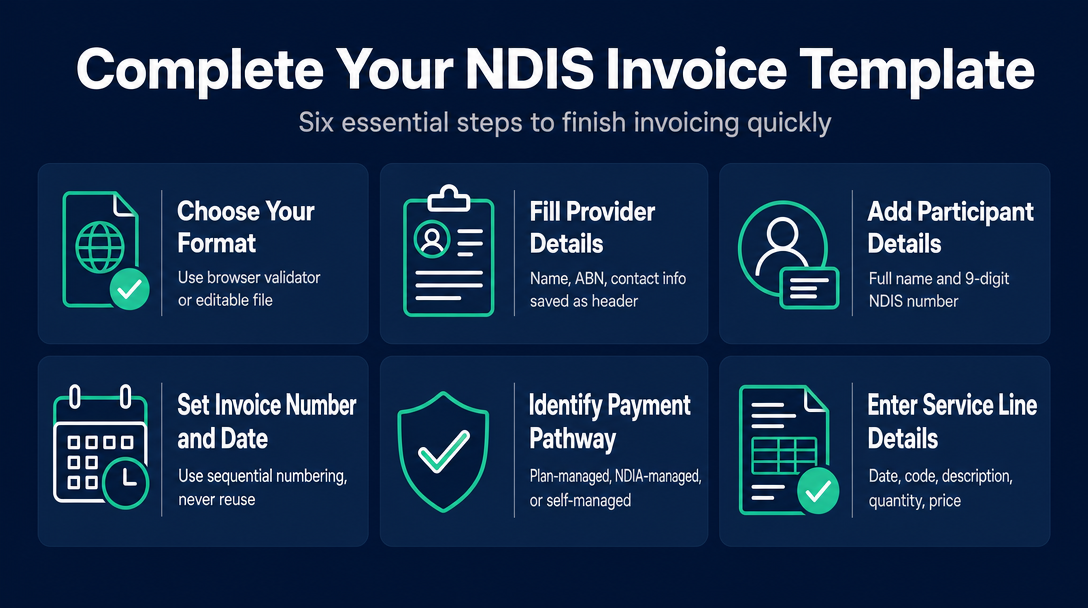
- Choose your format. Use a browser-based validator (recommended) or an editable file. If using a file, ensure it has all the fields from the table in the first section of this article.
- Fill in your provider details. Name, ABN, and contact information. Save these as your reusable header so you only do this once.
- Add participant details. Full name and 9-digit NDIS number. Confirm the number against the participant's plan or service agreement - a transposed digit means the claim cannot be matched.
- Set your invoice number and date. Use a sequential numbering system. Never reuse an invoice number.
- Identify the payment pathway. Plan-managed, NDIA-managed, or self-managed (see the comparison table above). This tells you who receives the invoice and which fields are mandatory.
- Enter each service line. For each support delivered: date of delivery, support item code, description, unit of measure, quantity, and unit price.
- Check the price against the current limit. If using a static template, verify manually against the NDIS Support Catalogue. If using the browser tool, this is validated automatically.
- Apply GST treatment. Mark each line as GST-free (most NDIS supports are), or include the GST amount if applicable. See the H3 above for when "Tax Invoice" vs. "Invoice" applies.
- Set the total and payment due date. 14 days is standard practice. Confirm this matches what you agreed in your service agreement.
- Send to the right place. Plan-managed: to the plan manager. NDIA-managed: submit via myplace or PACE portal (no invoice sent externally). Self-managed: to the participant directly.
- Save a copy. The NDIS requires providers to keep records of supports delivered and invoices issued. Keep a copy for your own records regardless of the payment pathway.
Frequently Asked Questions About NDIS Invoice Templates
Do I need to be a registered NDIS provider to use an invoice template? No. Unregistered sole traders can invoice plan-managed and self-managed participants without an NDIS registration number. Registration is only required to serve NDIA-managed (agency-managed) participants and to submit claims through the myplace or PACE portals.
Is a free NDIS invoice template legally valid? Yes. The NDIA does not mandate a specific template format. What matters is that all required fields are present and accurate. A free template - whether a downloaded file or a browser-based tool - is fully valid provided it contains the correct information for the participant's payment pathway.
How do I know if my invoice is GST-free? Most NDIS disability supports are GST-free under Australian tax law. If you are not registered for GST (because your annual turnover is below the $75,000 threshold), no GST applies to your invoices. If you are registered for GST, label the document "Tax Invoice" and mark NDIS supports as GST-free. When in doubt, check the ATO's guidance or consult a registered tax professional.
Can I use the same invoice template for every participant? Yes for the structure - no for the content. The template format can be reused, but participant-specific fields (NDIS number, name, service dates, support codes, and who the invoice is addressed to) must be updated for every invoice. Using a template that pre-fills your provider details saves time; the participant data must always be entered fresh.
What if I make a mistake on an NDIS invoice I already sent? Issue a corrected invoice with a new invoice number and a note clearly referencing the original invoice number and date. Contact your plan manager promptly if the original has already been processed - they will advise on the correction process. Do not simply resubmit the original with the error corrected.
Do I need to include a payment due date? It is not mandated under NDIS rules, but the NDIS expects providers to agree payment terms with participants or plan managers in advance. Fourteen days is the most widely used standard. Including a due date on every invoice reduces disputes and sets clear expectations.
A static template gives you the structure. It cannot give you the confidence that what you have filled in is actually correct against today's pricing rules. If you want both - a properly formatted invoice and real-time validation against the current NDIS Pricing Schedule - use the free NDIS Invoice tool. No account required. No data leaves your device. Ready when you are.
More articles
- How to Send Your NDIS Invoice After Creating It: A Step-by-Step Guide for Sole Traders
- Cloud-Based NDIS Invoicing vs. Local Processing: Why Privacy Matters for Participant Data
- NDIS Invoice Builder vs. Static Template: Why a Live Price-Guide Check Changes Everything
- NDISInvoice.com.au vs. Earni: Free Browser Tool vs. App Subscription for NDIS Support Workers
- NDISInvoice.com.au vs. Billability: Which Free-Tier NDIS Invoicing Tool Fits Your Needs?