How to Find Your NDIS Support Item Code: A Step-by-Step Guide for Australian Support Workers
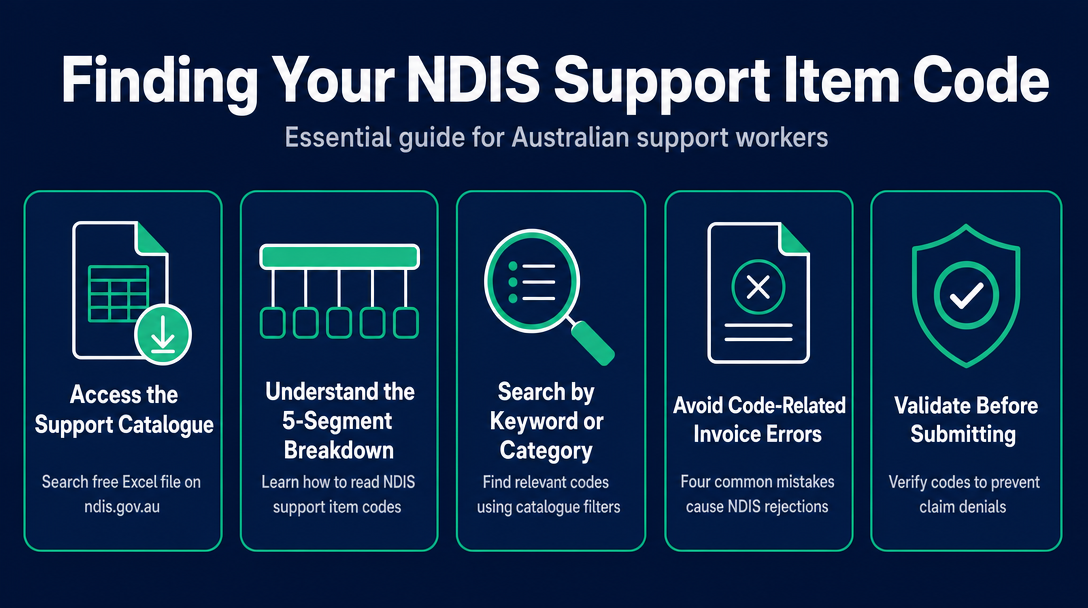
Finding the right NDIS support item code means searching the current NDIS Support Catalogue - a free Excel file on ndis.gov.au - by keyword or category
How to Find Your NDIS Support Item Code: A Step-by-Step Guide for Australian Support Workers
Finding the right NDIS support item code means searching the current NDIS Support Catalogue - a free Excel file on ndis.gov.au - by keyword or category number, then cross-checking the matching code against the Pricing Arrangements and Price Limits (PAPL) to confirm the price cap and any day/time classification that applies. The steps below walk you through exactly how to do that, and explain how to validate the code before your invoice goes out - not just look it up.
What Are NDIS Support Item Codes?
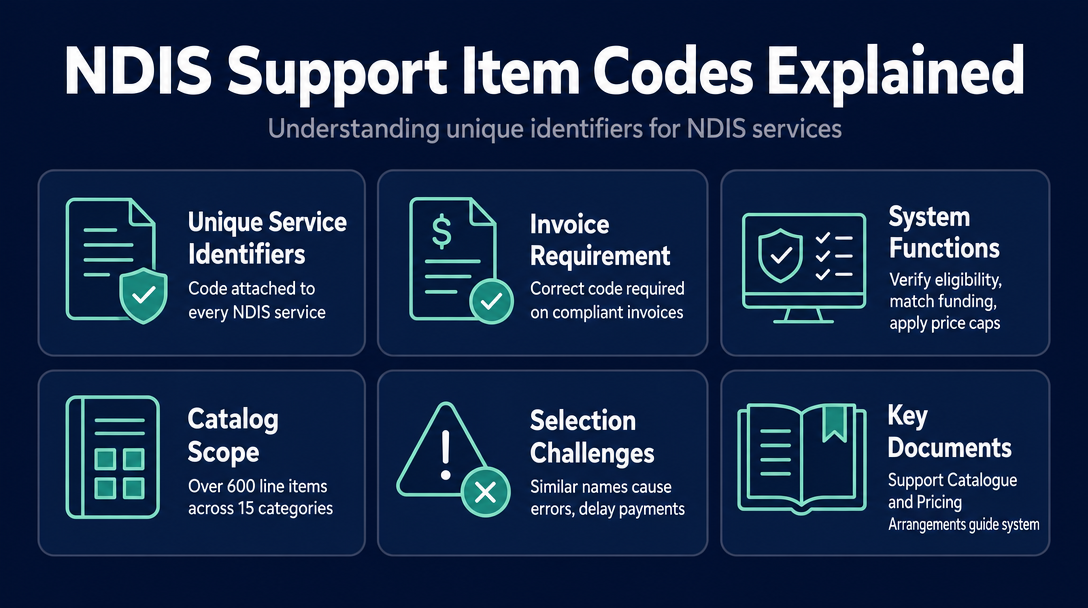
An NDIS support item code (also called a line item number or support item number) is the unique identifier attached to every service in the NDIS Support Catalogue. Every compliant invoice must carry the correct code for each line item - it is the reference the NDIA and plan managers use to check service eligibility, match the participant's plan funding, and apply the correct price cap.
The catalogue currently lists over 600 line items across 15 support categories. That breadth is part of the problem: with hundreds of codes, many of them sharing similar names but differing by time of day or provider type, selecting the wrong one is easy - and the consequences range from delayed payment to a compliance flag.
Two separate documents govern the system, and understanding the difference matters:
| Document | What it contains | Where to find it |
|---|---|---|
| NDIS Support Catalogue | Every item number, item name, registration group, and support category | ndis.gov.au - free Excel download |
| Pricing Arrangements and Price Limits (PAPL) | Price caps by code, location (national/remote/very remote), and day/time classification | ndis.gov.au - PDF download |
The Catalogue tells you what the code is. The PAPL tells you what you can charge. Both are published by the NDIA and updated at least once per financial year - typically on 1 July. Using a code from the Catalogue without checking the PAPL is a half-step that leaves the price question unanswered.
How to Read an NDIS Support Item Code: A 5-Segment Breakdown
Every NDIS code follows a structured format. Take the real example code 01_011_0107_1_1, which refers to Assistance With Self-Care Activities at the standard weekday daytime rate:
| Segment | Value | What it means |
|---|---|---|
| Support Category | 01 | Assistance with Daily Life (Category 1) |
| Sequence Number | 011 | Item's sequence within that category |
| Registration Group | 0107 | Daily Personal Activities |
| Outcome Domain | 1 | Daily Activities |
| Support Purpose | 1 | Core Support |
Understanding these five segments turns an opaque string of numbers into a readable description of the service, the budget type it draws from, and the provider registration group it belongs to.
What the Support Category number tells you
There are 15 support categories grouped under three funding types:
- Core Supports (Categories 01, 02, 03, 04) - everyday activities, transport, consumables, social and community participation
- Capacity Building Supports (Categories 05-14) - goals-focused supports including support coordination, improved daily living, and employment
- Capital Supports (Category 15 and others) - assistive technology and home modifications
The first two digits of a code immediately tell you which budget type the service draws from. Billing a Core Support code against a participant's Capacity Building budget is one of the most common - and automatic - causes of invoice rejection.
What the Registration Group tells you
The four-digit registration group (0107 in the example above) indicates which NDIS registration group covers that service type. Registered providers must hold approval for the relevant registration group to deliver that support. Sole traders operating as unregistered providers are not bound by registration groups for invoicing purposes, but using a code whose registration group does not match the service delivered creates a compliance mismatch that can surface during audits or payment reviews.
Day/time variants - the segment that catches sole traders out most often
Many support item codes have multiple variants for time of day and day of week. "Assistance With Self-Care Activities" alone has separate item numbers for:
- Weekday Daytime
- Weekday Evening
- Weekday Night
- Saturday
- Sunday
- Public Holiday
Each variant carries a different price cap. The PAPL defines the time boundaries: Weekday Daytime runs from 6:00 am to 8:00 pm Monday to Friday; Weekday Evening from 8:00 pm to midnight; Weekday Night from midnight to 6:00 am. Saturday, Sunday, and Public Holiday rates apply flat across the whole day regardless of shift start time.
A sole trader who invoices the weekday daytime code for a shift delivered on Saturday is under-billing - receiving a lower rate than they are entitled to. A diligent plan manager or automated payment system may also flag the discrepancy between the code used and the service records submitted. Either way, it is an avoidable problem.
Step-by-Step: How to Look Up the Right NDIS Support Item Code
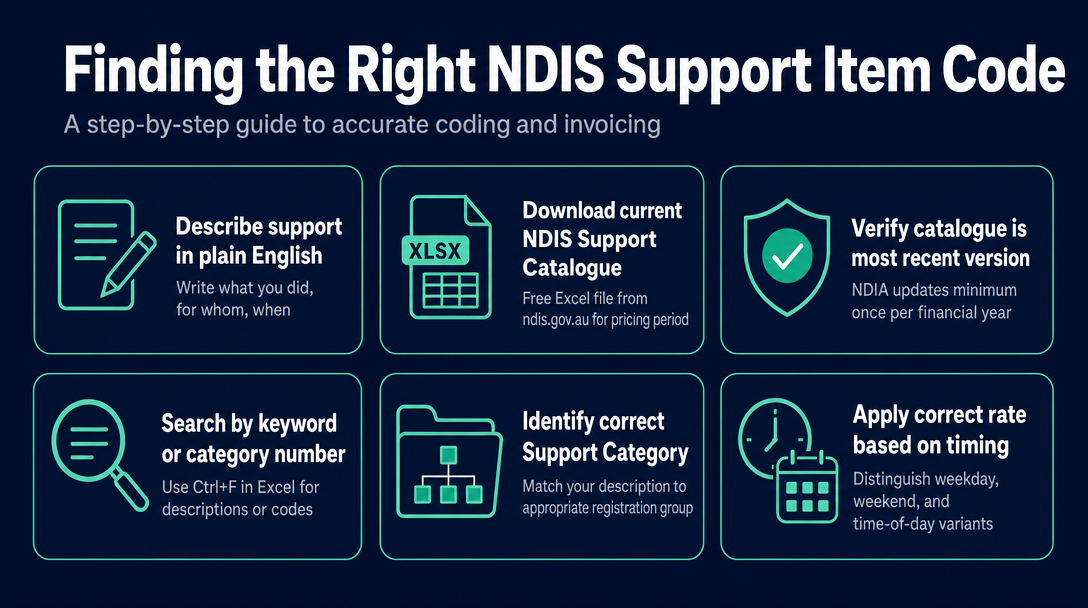
Step 1 - Describe the support you delivered in plain English
Before opening any catalogue or tool, write one sentence: what did you do, for whom, and when? For example: "I assisted a participant with showering and dressing on a Saturday morning." This immediately points you to Support Category 01 (Daily Life), Registration Group 0107 (Daily Personal Activities), and signals that a Saturday-rate code applies - not the weekday daytime variant.
Step 2 - Download the current NDIS Support Catalogue
The catalogue is a free Excel file on ndis.gov.au. Download the version marked as current for the active pricing period. Because the NDIA updates the catalogue at minimum once per financial year (and sometimes mid-year), always verify you have the most recent version before building your invoice template. Using a saved copy from three months ago may mean working from retired codes.
Step 3 - Search by keyword or category number
In Excel, use Ctrl+F to search the catalogue by description (for example, "self-care Saturday") or by partial code (for example, "01_"). Filtering by the Support Category column narrows results quickly. Alternatively, a third-party lookup tool with a search interface can speed up this step - see the comparison in the next section.
Step 4 - Match the day/time variant
Once you have located the base support item, check whether day/time variants exist. For most personal care, community access, and supported independent living supports, they do. Select the variant that matches when the support was delivered - not when the invoice is written, and not the cheapest available rate.
Step 5 - Cross-check the price cap in the PAPL
The Support Catalogue confirms the item number and name. The PAPL confirms the price limit. Open the PAPL PDF, search for the item number, and verify that your hourly rate (or per-unit rate) sits at or below the cap for your location. National rates apply to most metropolitan providers; remote and very remote locations attract higher caps under the PAPL's location loading rules.
Step 6 - Validate before you send
Before the invoice leaves your hands, run through four checks: (a) the code matches the service delivered, (b) the rate is at or below the PAPL cap, (c) the day/time variant matches the actual shift, and (d) the code is not a legacy or retired item. A browser-based validator can automate all four checks locally - without uploading any participant data to an external server.
Four Code-Related Errors That Cause NDIS Invoice Rejections
Error 1: Outdated (legacy) support item code
When the NDIA revises the Support Catalogue, some codes are retired - they become "legacy items" that the PACE payment system cannot process. If your invoice template was built last financial year and has not been updated, you may be submitting codes that no longer exist in the active catalogue. A code valid in one pricing period may be removed, renamed, or merged in the next. The fix is straightforward - but only if you check before sending.
Error 2: Rate above the current price cap
Charging above the NDIS price limit for a support item is a compliance breach, not merely an administrative error. The PAPL caps are mandatory for plan-managed and NDIA-managed participants. An invoice with a rate above the cap will be rejected by a diligent plan manager or flagged during a payment audit. The cap also changes each pricing period - a rate that was compliant in 2024-25 may exceed the limit in 2025-26 or 2026-27 if the price schedule shifted downward for that item.
Error 3: Wrong day/time classification
Using the weekday daytime code for a shift delivered on a Saturday, Sunday, or public holiday is a misclassification. This is not always intentional - many sole traders rely on a single code they use habitually, without realising the same service has distinct item numbers per time slot. The result is an invoice that under-pays the provider and creates a discrepancy between the code submitted and the shift records attached to the claim.
Error 4: Support category mismatch with the participant's plan budget
Each participant's plan allocates separate budgets to Core, Capacity Building, and Capital supports. Using a Core Support code to claim against a Capacity Building budget will be rejected outright - the budget lines are not interchangeable. This error most commonly occurs when providers use a generic or habitual code rather than checking which budget category the participant's plan designates for that specific support.
A lookup tells you what a code is. A validator tells you whether it is right for this invoice, right now - checking the cap, confirming the code is current, and matching the day/time. Most tools only do the first.
Where to Look Up NDIS Support Item Codes: Your Options Compared
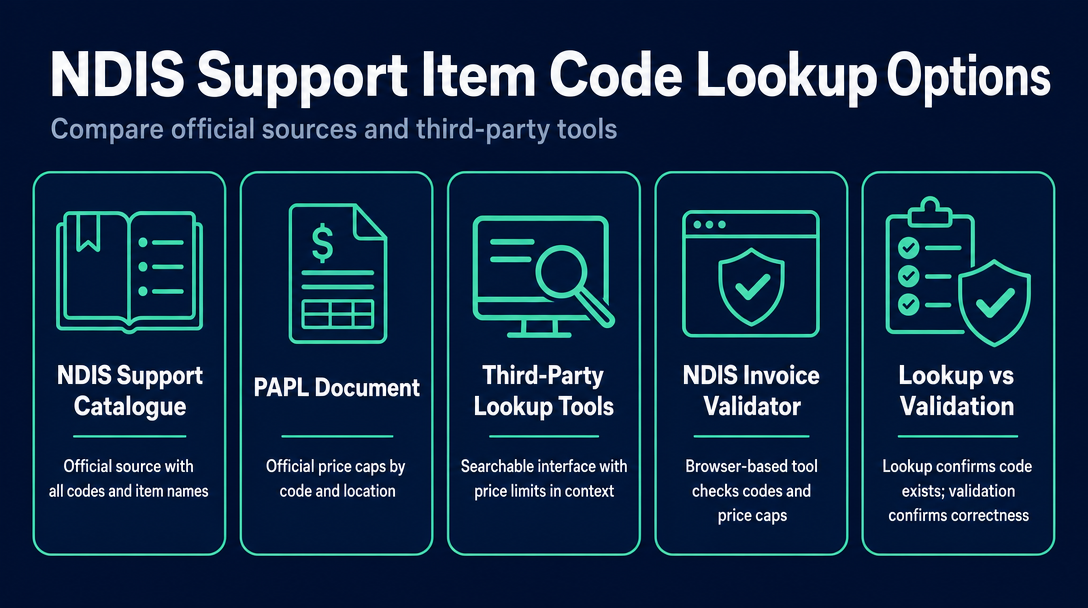
| Option | What it gives you | Limitations |
|---|---|---|
| NDIS Support Catalogue (Excel, ndis.gov.au) | Official source; all 600+ codes and item names | No search-as-you-type; must cross-reference PAPL separately for prices; requires manual download with each update |
| PAPL document (PDF, ndis.gov.au) | Official price caps by code and location | Not structured as a code directory; updated on a separate cycle from the Catalogue |
| Third-party lookup tools (e.g. Carevo, Plan Partners) | Searchable interface; often shows price limits in context | May not reflect mid-year PAPL updates immediately; some tools are tied to a plan management sign-up flow |
| NDIS Invoice (browser-based validator) | Checks codes and price caps as you build the invoice; runs entirely in your browser with no data sent to a server | Designed for invoice creation, not standalone code browsing |
Why "validation" and "lookup" are not the same thing
A lookup confirms a code exists and what it refers to. A validation confirms the code is correct for this specific invoice - right service type, right day/time variant, current (not retired), and within the PAPL price cap. The distinction matters because three of the four rejection errors described above are invisible at the moment of writing an invoice. They only surface when the claim bounces. Catching them before submission is the practical difference between getting paid promptly and reissuing paperwork a week later.
Sole traders and registered providers: does the lookup process differ?
The Support Catalogue and PAPL are public documents available to all providers, registered or not. The practical difference is that registered providers must use codes within their approved registration groups - their NDIS registration determines which line items they are authorised to claim. Sole traders working as unregistered providers are not constrained by registration groups in the same way, but they must still use valid, current codes and respect price caps for plan-managed participants. The lookup process is identical; the compliance context is slightly different.
Privacy considerations when using online lookup tools
Invoices contain participant names, NDIS numbers, dates of service, and support details. When you enter invoice data into a cloud-based platform, that information may be processed or stored on external servers - a consideration under the Privacy Act 1988 (Cth) and the NDIS Code of Conduct's participant privacy obligations. A browser-based tool that processes all data locally, on your own device, avoids this exposure entirely. No data is transmitted; nothing is retained after you close the tab.
Frequently Asked Questions
How many NDIS support item codes are there?
The current NDIS Support Catalogue contains over 600 line item codes across 15 support categories. The exact count changes with each annual or mid-year update to the Pricing Arrangements and Price Limits - some codes are added, some are retired, and some are renamed.
Where can I find the official list of NDIS support item codes?
The NDIS Support Catalogue is a free Excel file available for download at ndis.gov.au. It lists every current support item number, item name, registration group, and support category. The companion document - the Pricing Arrangements and Price Limits (PAPL) - is a separate PDF on the same site and lists the corresponding price caps.
What happens if I use the wrong NDIS support item code on an invoice?
The invoice will likely be rejected by the plan manager or the NDIA's payment system. You will need to reissue with the correct code, delaying payment. If the rate charged also exceeds the PAPL price cap, the error may be treated as a compliance breach rather than a simple administrative correction.
Do NDIS support item codes change every year?
Yes. The NDIA updates the Support Catalogue and PAPL at minimum once per financial year, effective 1 July, and sometimes issues mid-year revisions. Codes can be added, renamed, retired, or have their price limits adjusted. Always verify you are working from the current version of both documents before invoicing.
Can sole traders use the same NDIS code lookup approach as registered providers?
Yes. The Support Catalogue and PAPL are publicly available to all providers. The key difference is that registered providers must claim within their approved registration groups, while sole traders operating as unregistered providers are not bound by registration groups - but must still use valid, current codes and respect price caps for any plan-managed participant.
Stop Guessing - Validate Before You Send
NDIS Invoice checks every line item code against the current Support Catalogue and price cap as you build your invoice - directly in your browser, with no participant data leaving your device. It is free for Australian NDIS providers and sole traders, with no account or subscription required.
Try NDIS Invoice - free, no sign-up required
More articles
- NDIS Sleepover and Overnight Support Invoicing: Which Codes to Use and How to Calculate the Rate
- What Must Be on an NDIS Invoice? The 9 Required Fields (with a Free Checklist)
- GST on NDIS Invoices: What Support Workers Need to Know Before Adding (or Skipping) Tax
- NDIS Cancellation Invoice: How to Charge for a Short-Notice Cancellation Without Getting It Wrong
- How to Invoice NDIS Provider Travel: Rules, Codes, and Caps for Support Workers in 2026-27