NDIS Invoice Compliance Checklist: What to Validate Before Sending Each Claim
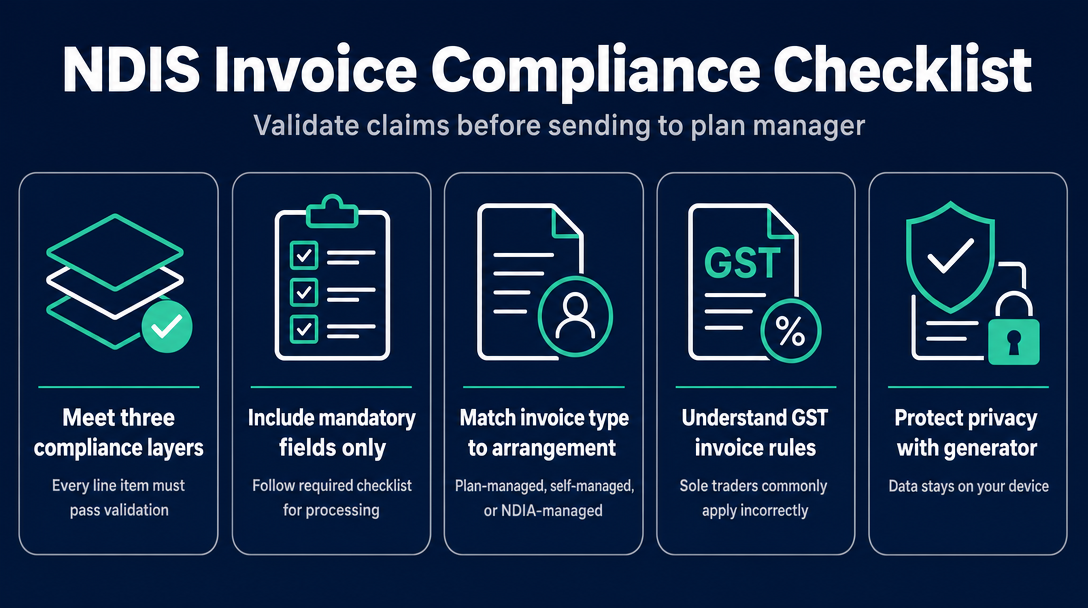
NDIS invoices aren't like standard business invoices. Every line item must pass three distinct compliance layers before a plan manager will process it -
NDIS Invoice Compliance Checklist: What to Validate Before Sending Each Claim
NDIS invoices aren't like standard business invoices. Every line item must pass three distinct compliance layers before a plan manager will process it - and a formatting error, outdated code, or wrong day-rate can mean rejection, delayed payment, and time spent chasing corrections. The free NDIS Invoice generator handles all three layers in your browser, with no sign-up and no subscription required.
Why a Static Template Isn't Enough - and What "Compliant" Actually Means
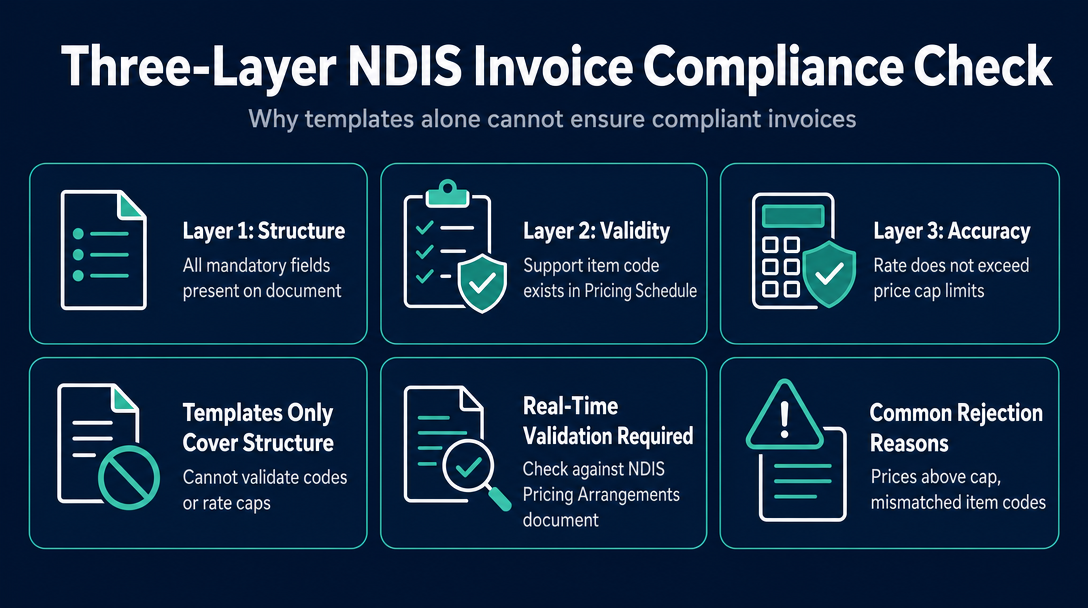
Every NDIS invoice must clear what this article calls The Three-Layer Compliance Check:
- Structure - all mandatory fields are present on the document
- Validity - the support item code exists in the current Pricing Schedule
- Accuracy - the rate charged does not exceed the price cap for the selected day/time classification
A downloadable Word or Excel template can help with Layer 1. It formats your invoice and reminds you which fields to fill in. But it cannot tell you whether a support item code is still active, whether your hourly rate is over the current cap, or whether you've selected "Weekday Daytime" when you actually worked a Sunday. Layers 2 and 3 require real-time validation against the NDIS Pricing Arrangements and Price Limits (PAPL) - the official document that sets the maximum price for every funded support.
The most common reasons NDIS invoices are rejected include prices above the current cap, support item codes that don't match the participant's funded categories, and missing mandatory fields. All three are preventable before you hit send.
If you still need to identify your support item number, start with our NDIS support item code lookup guide - then come back here to build the invoice.
How to Create a Compliant NDIS Invoice with the Free Generator (Step-by-Step)
This is the core workflow. Each step includes a note on why it matters for compliance.
Step 1: Open the generator in your browser
Go to ndisinvoice.com.au. No account creation, no email address, no subscription. The tool loads immediately and runs entirely in your browser.
Why it matters: Starting without registration means there is no delay between deciding to invoice and producing a compliant document.
Step 2: Enter your provider details
Enter your full name or business name and your ABN. Both must appear on every NDIS invoice - the ABN is a non-negotiable field that plan managers check immediately.
Why it matters: An invoice without a valid ABN will be returned without processing. The ATO requires ABN disclosure on all business-to-business invoices, and NDIS plan managers apply this strictly.
Step 3: Enter the participant's details
Add the participant's full name and NDIS number. If the participant is plan-managed, add the plan manager's name and address in the "Bill To" section - because the invoice goes to the plan manager, not the participant.
Why it matters: Sending a plan-managed invoice to the participant instead of the plan manager is one of the most common workflow errors for sole traders new to NDIS. Get the routing right at this step.
Step 4: Add your support item number
Type or select your support item number. The generator validates it against the current 2025-26 NDIS Pricing Arrangements and Price Limits, which came into effect on 1 July 2025. If the code is retired or does not exist in the current schedule, the tool flags it before you go any further.
Why it matters: An expired support item code is a Layer 2 failure - the invoice will be rejected even if every other field is correct. Catching it here takes seconds; catching it after rejection takes days.
Step 5: Set the date of service and select the correct day/time classification
This step is where most single-line errors occur. Select from: Weekday Daytime, Weekday Evening, Saturday, Sunday, or Public Holiday. The price cap shown in the generator adjusts automatically based on your selection.
Why it matters: The same support item code carries a different maximum rate depending on when the support was delivered. Selecting the wrong classification - even accidentally - means you are either under-billing yourself or submitting a rate the plan manager cannot approve. For example, a standard community support item delivered on a Saturday attracts a higher cap than the same item on a weekday morning. The generator shows you the correct cap as soon as you make your selection, so there is no mental arithmetic required.
Step 6: Enter your quantity and confirm the rate
Enter the number of hours (or units, depending on the support item's unit of measure). Confirm that the rate you are charging does not exceed the price limit displayed. The generator will flag if you attempt to enter a rate above the cap.
Why it matters: This is Layer 3 of the compliance check. A rate even a few cents above the cap is sufficient grounds for rejection.
Step 7: Assign a unique invoice number and invoice date
Every invoice must carry a unique number. Sequential numbering (INV-001, INV-002, and so on) is a simple, audit-friendly approach. The invoice date is separate from the date of service - record both accurately.
Why it matters: Plan managers and the NDIA use invoice numbers to match claims to records. Duplicate invoice numbers cause processing errors and can flag your account for review.
Step 8: Review the compliance summary, then download the PDF
Before downloading, review the summary the generator displays. Once all three compliance layers are clear, download or print the PDF. That document is your invoice - ready to send.
What Every NDIS Invoice Must Include (Mandatory Fields Checklist)
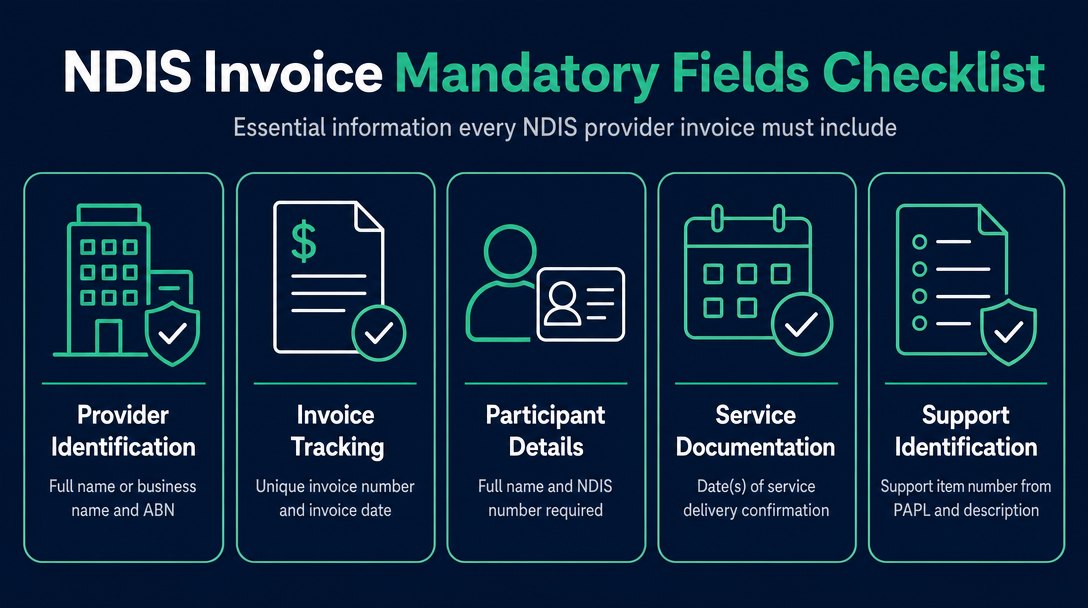
The NDIS Guide to Getting Paid sets out what providers must include. The generator auto-populates several of these fields; the rest you enter once per invoice.
| Field | Why It Is Required | Auto-populated? |
|---|---|---|
| Provider's full name or business name | Identifies who is claiming | You enter once |
| Provider's ABN | Legal and tax identification requirement | You enter once |
| Unique invoice number | Audit trail and duplicate prevention | You assign |
| Invoice date | Records when the claim was raised | You enter |
| Participant's full name | Links the invoice to the correct participant | You enter |
| Participant's NDIS number | Required for plan manager processing and NDIA matching | You enter |
| Date(s) of service delivery | Confirms the support was delivered before the claim | You enter |
| Support item number (from the PAPL) | Identifies the specific funded support | You enter; generator validates |
| Support item name/description | Human-readable label for the support | Generator populates from PAPL |
| Unit of measure (hour, each, day, etc.) | Sets the billing unit for the line item | Generator populates from PAPL |
| Quantity | Hours worked or units delivered | You enter |
| Unit price | What you are charging per unit | You enter; generator checks against cap |
| Day/time classification | Determines which price cap applies | You select; generator adjusts cap |
| Total amount | Sum of all line items | Generator calculates |
| GST status | Most NDIS supports are GST-free - this must be stated | Generator applies correct status |
| Bank details | Required when invoicing self-managed participants directly | You enter if applicable |
Fields 8, 9, 10, and 12 (support item number, name, unit of measure, and the price cap check) are validated automatically against the current Pricing Schedule. Every other field depends on accurate data entry.
Plan-Managed, Self-Managed, and NDIA-Managed - Who Gets Which Invoice?
How a participant's plan is managed determines where your invoice goes - and this affects what you include on it.
Plan-managed participants
Send your invoice directly to the participant's plan manager - not to the participant. The invoice must include the participant's NDIS number and a valid support item number. The plan manager submits the claim to the NDIA on the participant's behalf and pays you from the participant's funding. This is the most common payment path for registered providers and many sole traders.
Self-managed participants
Invoice the participant directly (or their nominated representative). The participant pays you from their own bank account and then seeks reimbursement from the NDIA themselves. Because payment comes from the participant, your bank details must appear on the invoice. In the generator, include your BSB and account number in the payment details section when generating invoices for self-managed participants.
NDIA-managed participants
Only NDIS-registered providers can work with NDIA-managed participants. The claim is submitted through the myplace provider portal - the invoice you generate is supporting documentation for your records, not the claim mechanism itself. If you are an unregistered sole trader, you cannot invoice NDIA-managed participants.
If you are unsure how a participant's plan is managed, check their service agreement or ask their plan manager before generating your invoice.
Your Data Stays on Your Device - How the Generator Handles Privacy
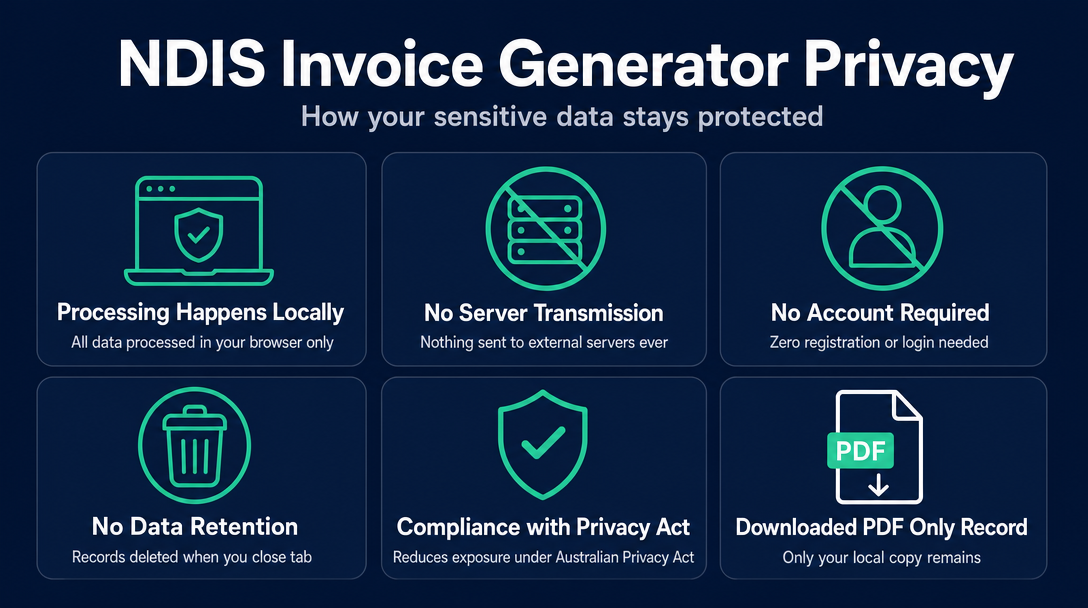
NDIS invoices contain sensitive personal information: a participant's full name, NDIS number, and details of their disability-related supports. Understanding where that data goes when you use any online tool is a legitimate question - and one that no other free template or generator page currently answers.
The NDIS Invoice generator processes all data locally, in your browser, on your own device. Nothing is transmitted to a server. No account is created. When you close the browser tab, no record of what you entered is retained anywhere outside your own downloaded PDF.
This matters for two reasons. First, many browser-based invoice tools store your data on their servers to power features like invoice history and client management - useful features, but a privacy trade-off worth understanding before you enter a participant's NDIS number into a web form. Second, the Australian Privacy Act 1988 applies to businesses that handle personal information, including sole traders in certain circumstances. Minimising data exposure by keeping participant details on your own device rather than a third-party server is a straightforward risk-reduction step.
The generator's local-processing model is not a limitation - it is a deliberate design choice.
GST on NDIS Invoices - The Rule Sole Traders Get Wrong Most Often
Most NDIS disability supports are GST-free under Australian tax law. This means you do not add GST on top of your rate for standard disability support items - and the price limits in the PAPL already reflect this.
Two scenarios apply to sole traders:
- If your annual turnover is below the ATO's GST registration threshold: You are not required to register for GST, and no GST appears on your invoice.
- If your annual turnover meets or exceeds the threshold: You must register for GST. Even so, most NDIS disability support items remain GST-free after registration - you are registered but not charging GST on those items. Some services adjacent to NDIS (such as certain plan management fees) may attract GST; confirm with your accountant if you deliver any non-standard services.
The generator defaults to GST-free for standard NDIS disability supports and will flag any support item known to carry a different GST treatment. Check ato.gov.au for the current registration threshold and GST rules for NDIS providers. When in doubt, confirm your GST position with a registered tax agent or accountant - the consequences of incorrectly charging GST (or not charging it when required) sit with you, not the plan manager.
Frequently Asked Questions
Do I need to be a registered NDIS provider to use this tool?
No. The generator is designed for both registered NDIS providers and unregistered sole traders or independent support workers. Registration status affects which participants you can work with (unregistered providers cannot invoice NDIA-managed participants), but it does not affect your ability to create and download a compliant invoice using this tool.
What happens if my support item code has been retired or changed?
The generator validates every code you enter against the current 2025-26 NDIS Pricing Arrangements and Price Limits. If you enter a retired or non-existent code, the tool flags it immediately so you can correct it before downloading. You will not be able to generate an invoice with an invalid code in the support item field.
Can I use this generator for multiple participants?
Yes. Each time you open the generator, you start fresh - enter the details for whichever participant and service you are invoicing at that session. There is no limit on how many invoices you can generate. Because nothing is stored between sessions, each invoice is completely independent.
How do I send the invoice once I have downloaded the PDF?
For plan-managed participants, email the PDF directly to the plan manager - keep a copy for your records. For self-managed participants, send it to the participant or their nominee and retain a copy. For NDIA-managed participants (registered providers only), the invoice is your internal record; the actual claim is submitted through the myplace provider portal. Plan managers are required to keep all invoices and records for the claims they submit.
What is the NDIS Pricing Arrangements and Price Limits (PAPL), and why does it affect my invoice?
The PAPL is the official NDIS document that sets the maximum price providers can charge for every funded support item. It specifies each support item number, the item's name, the unit of measure, and the price limits that vary by day and time. The current version came into effect on 1 July 2025. If your invoice charges more than the PAPL price limit for a given item and classification, it will be rejected - which is why validating against the current PAPL before sending is essential.
Your invoice is ready in under two minutes - open the free NDIS Invoice generator now, no sign-up required.
Need to confirm your support item number first? Use our NDIS support item code lookup guide before you start - then come back here to build, validate, and download your compliant invoice.
More articles
- NDIS Sleepover and Overnight Support Invoicing: Which Codes to Use and How to Calculate the Rate
- What Must Be on an NDIS Invoice? The 9 Required Fields (with a Free Checklist)
- GST on NDIS Invoices: What Support Workers Need to Know Before Adding (or Skipping) Tax
- NDIS Cancellation Invoice: How to Charge for a Short-Notice Cancellation Without Getting It Wrong
- How to Invoice NDIS Provider Travel: Rules, Codes, and Caps for Support Workers in 2026-27