NDIS Support Item Code Lookup: How to Search by Plain Words Instead of Memorising Codes
Written by Cory Nathan, founder of NDIS Invoice · Last reviewed
Finding the right NDIS support item code does not require memorising alphanumeric strings or downloading a 900-row spreadsheet every time you invoice. At
10 min read
NDIS Support Item Code Lookup: How to Search by Plain Words Instead of Memorising Codes
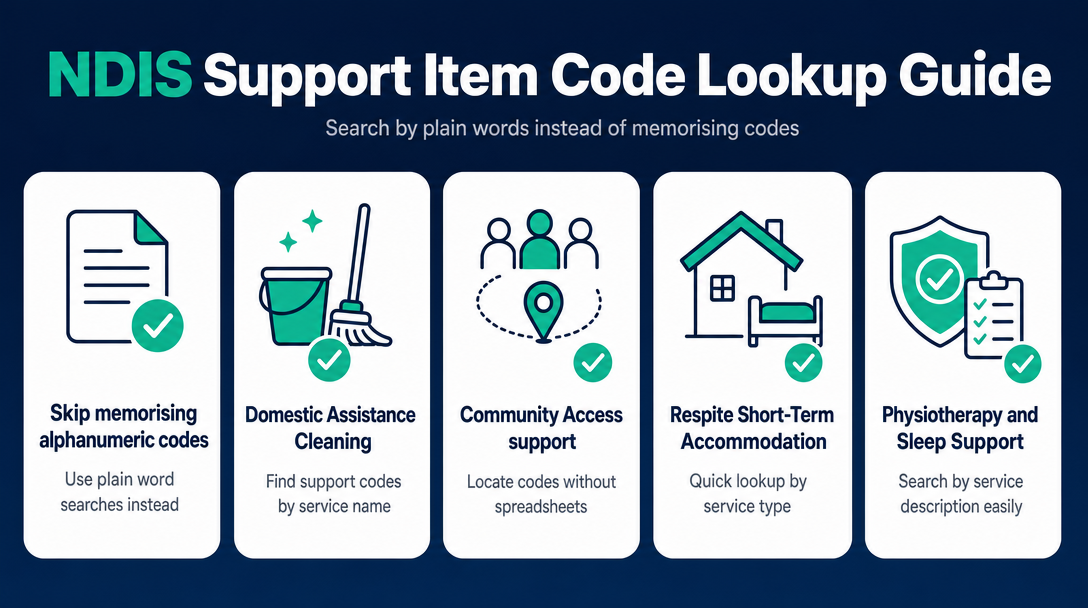
Finding the right NDIS support item code does not require memorising alphanumeric strings or downloading a 900-row spreadsheet every time you invoice. At NDISInvoice.com.au, you can type a plain-English description of the support you delivered and the tool matches it to the correct code from the current 2026-27 Support Catalogue - instantly, in your browser, with no account needed for the search.
This article walks through exactly how that works, using five real support types that sole traders invoice most often: domestic assistance (cleaning), community access, respite, physiotherapy, and sleep support. Each example shows the search term, the result, and what to check before you accept the code.
Why Searching by Plain Words Works Better Than Memorising Codes
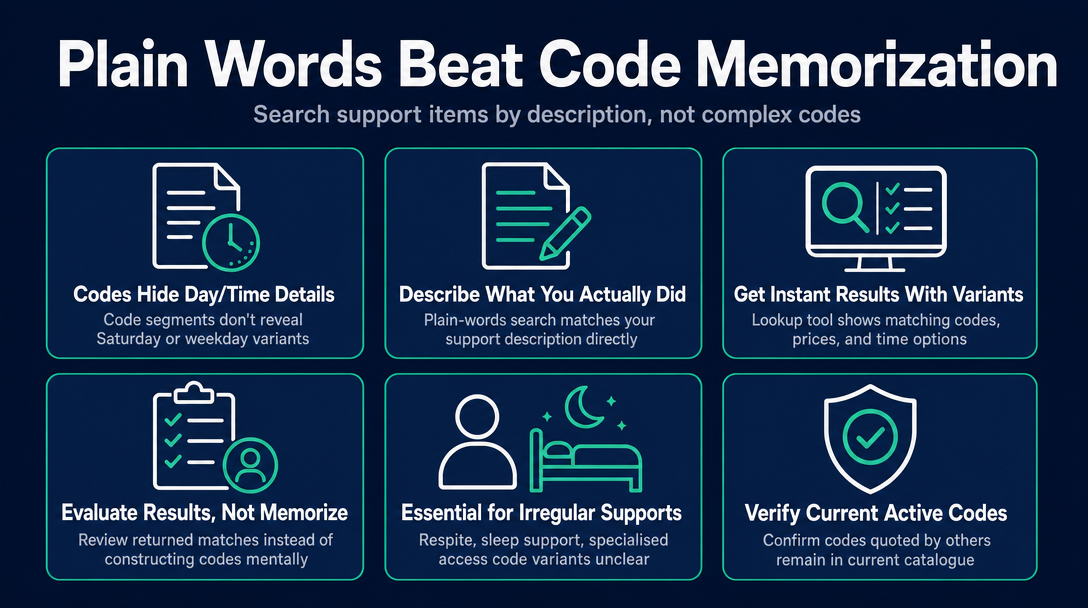
Every NDIS support item code is built from segments that encode the support category, a sequence number, registration group, budget type, and outcome domain. A code like 01_011_0107_1_1 carries all of that information, but nothing about it tells you at a glance whether it covers Saturday shifts or weekday-daytime-only.
Plain-words search sidesteps this entirely. You describe what you did - "assistance with self-care, Saturday morning" - and the lookup tool filters the Support Catalogue to surface the codes that match, alongside their price limits and day/time variants. You evaluate the result rather than constructing the code from memory.
This matters most for two specific situations:
- You deliver a support you do not invoice every week (respite, sleep support, specialised community access) and cannot be certain which code variant applies
- You are checking a code a participant or coordinator has quoted to you, and want to confirm it is still active in the 2026-27 catalogue
Worked Example 1: Domestic Assistance (Cleaning)
What you search: "house cleaning" or "domestic assistance"
What you find: The Support Catalogue distinguishes between Assistance with Self-Care Activities (Category 01, Core Supports) and Household Tasks (also Category 01). For domestic assistance in the home - vacuuming, mopping, laundry - the schedule has its own item: 01_020_0120_1_1, House Cleaning And Other Household Activities (national limit $60.10 an hour in 2026-27 v1.1), not the self-care family.
House cleaning has a single code with no day-of-week variants. For the self-care family (01_011 and its siblings) the day/time variant matters immediately. The sequence number changes across:
- Weekday daytime
- Weekday evening
- Saturday
- Sunday
- Public holiday
If you delivered self-care on a Saturday, the weekday-daytime code (01_011_0107_1_1) is incorrect. The Saturday code has a different sequence number and a higher price cap. Entering the wrong variant is one of the most common sole-trader invoice errors - and the plan manager cannot simply override it.
What to check in the result: Confirm the item name includes the correct day/time description. Confirm the price limit shown matches the current NDIS Pricing Schedule for your location (national, remote, or very remote).
Worked Example 2: Community Access
What you search: "community access" or "community participation"
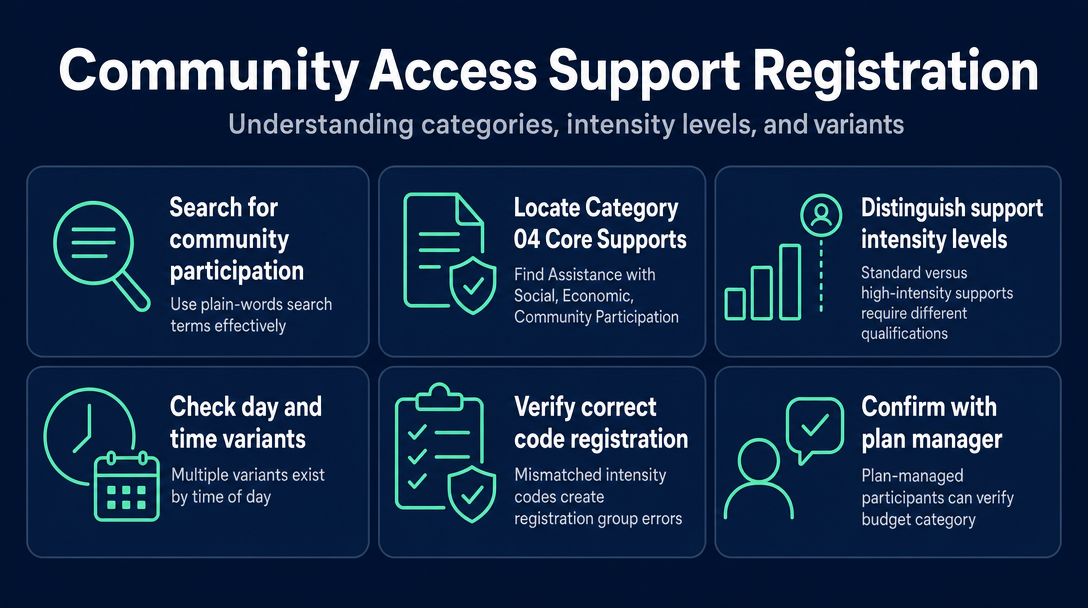
What you find: Community access sits under Assistance with Social, Economic and Community Participation (Category 04, Core Supports), registration group 0136. Like Category 01, this family has multiple variants by time of day and day of week.
There is a nuance here that plain-words search surfaces immediately: some community access codes are for standard supports, others are for high-intensity supports requiring additional qualifications. Searching "community access high intensity" returns a distinct code with different requirements and a different price cap. If you are not delivering a high-intensity support, claiming the high-intensity code is a registration group mismatch - even if the description sounds similar.
What to check: Confirm "standard" vs "high intensity" in the item name. Confirm the day/time variant. If the participant is plan-managed, their plan manager can confirm which category their Community Participation budget sits in.
Worked Example 3: Respite (Short-Term Accommodation)
What you search: "respite" or "short term accommodation" or "STA"
What you find: Short-Term Accommodation and Assistance (STA) sits in Category 01, registration group 0115. This is one of the code families most affected by the 2026-27 catalogue updates - a number of ratio-based STA items in registration group 0115 are marked as Legacy items in the current catalogue, with an end date after which they will be fully deactivated.
This is the Legacy Code Trap in practice. If you have been invoicing STA from a saved spreadsheet or a code you used last financial year, you must check the End Date column in the current Support Catalogue before invoicing again. A legacy item with a past end date is auto-rejected by the NDIS payment system. No amount of correct pricing or accurate descriptions rescues it - the plan manager must request an amended invoice, which delays your payment.
What to check: In the search result, look for any "Legacy" flag or end date. If the item shows a future end date, it is still claimable until that date - but start identifying the replacement item now.
Worked Example 4: Physiotherapy
What you search: "physiotherapy" or "physio"
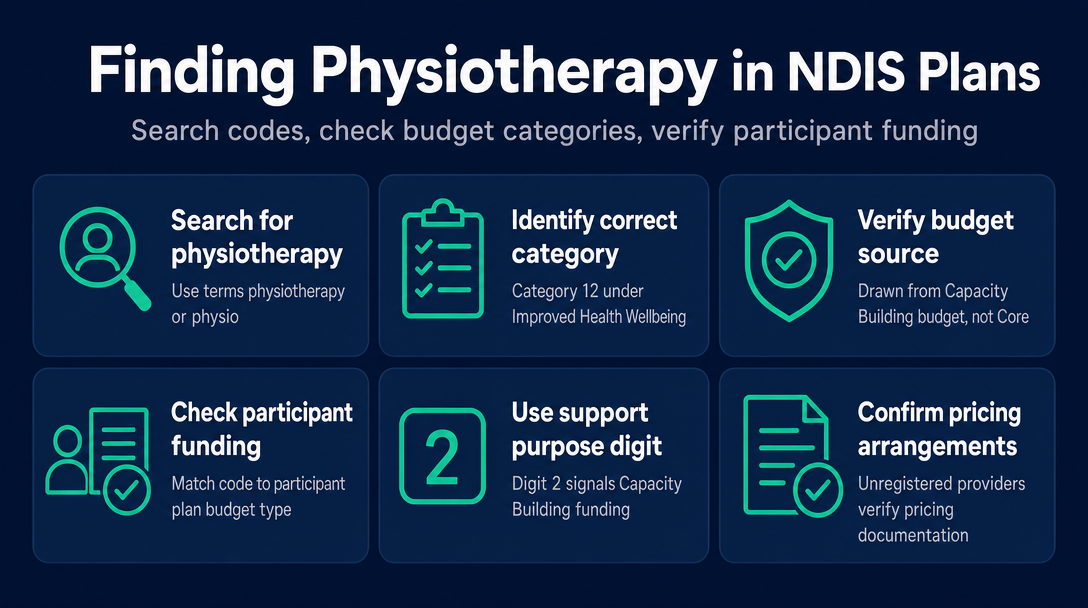
What you find: Physiotherapy sits under Improved Health and Wellbeing (Category 12, Capacity Building Supports), registration group 0128. This is a critical difference from the previous examples - this code draws from a Capacity Building budget, not a Core Supports budget.
This distinction matters if a participant has limited or no Capacity Building funding. Claiming a Category 12 physio code against a participant whose plan only has Core funding will fail at the budget-match check, even if the code itself is correct. Some participants fund therapy through different categories depending on how their plan was set up - your plain-words search result will show the support purpose digit (2 for Capacity Building vs 1 for Core), which is the signal to check against the participant's plan.
If you are a physiotherapist invoicing as an unregistered provider through a plan-managed participant, also confirm in the Pricing Arrangements document whether the specific physio item you are claiming requires registration. Not all Capacity Building codes are accessible to unregistered providers.
What to check: Support purpose digit in the code (Capacity Building = 2). Confirm the participant has Capacity Building funding available. Confirm unregistered provider eligibility if relevant to you.
Worked Example 5: Sleep Support (Overnight / Sleepovers)
What you search: "overnight" or "sleepover" or "sleep support"
What you find: Sleep support has its own distinct code family within Category 01. The Support Catalogue distinguishes between:
- Active overnight support (the worker is awake and providing active support during the night)
- Overnight sleepover (the worker is present and available but not expected to be continuously active)
These are genuinely different codes, not just time-of-day variants. The plain-words search will return both; you must pick the one that accurately reflects what was delivered. Claiming an active overnight code for a standard sleepover is both an overcharge and a compliance risk. Claiming a sleepover code when you were actively supporting the participant all night may mean you are undercharging relative to the applicable price limit.
There is also a separate code for any hours within a sleepover where active support was delivered - this is sometimes called a "broken night" and has its own item. If the participant required active assistance at 2 am and again at 5 am, those hours may be claimable under a different item alongside the base sleepover code.
What to check: Active vs passive overnight. Whether any active-hours component needs a separate line item. Check the item notes in the Support Catalogue for any specific claiming rules (some overnight items have non-face-to-face restrictions or require documentation of actual hours worked).
What to Do When the Search Returns Multiple Results
For some supports, a plain-words search returns several similar items. A search for "community access" might return standard, high intensity, and group-based variants all at once. Use these three filters to narrow down:
- Day and time of the shift - eliminates all wrong-variant codes immediately
- Standard vs high intensity - based on the participant's support needs as documented in their plan
- Individual vs group - whether the support was delivered one-to-one or with other participants
If you are still uncertain after applying these filters, the NDIS Pricing Arrangements document explains the claiming rules for each support category in plain language. For unusual or complex supports - specialist disability accommodation, supported independent living, school-leaver employment supports - start with the Pricing Arrangements document rather than the search tool, because the rules governing those items are what determines eligibility, not just the code number.
Frequently Asked Questions
Can I search the NDIS Support Catalogue by plain words instead of downloading the Excel file? Yes. A browser-based tool like NDISInvoice.com.au lets you type a description - "domestic assistance Saturday" or "community access high intensity weekday evening" - and returns matching codes from the current Support Catalogue without you needing to open the file. The search runs in your browser and needs no account.
Why does the same support have multiple codes with different numbers? The NDIS Support Catalogue has separate codes for each day/time variant (weekday daytime, weekday evening, Saturday, Sunday, public holiday) and for each intensity level (standard, high intensity). The sequence number segment of the code changes for each variant. Two codes may look nearly identical but carry different price caps - picking the wrong one means your invoice will either be underpaid or rejected.
What is a legacy NDIS support item code? A legacy item is a code that is being phased out. The NDIS Support Catalogue marks these items with an end date. Before that date, the code can still be claimed. After it, the payment system rejects it automatically. Always check the End Date column when using a code you have held in a saved list from a previous financial year.
Do I need to be a registered NDIS provider to use certain support item codes? Some codes require the provider to hold registration with the NDIS Quality and Safeguards Commission for the relevant registration group. Others are accessible to unregistered providers via plan-managed or self-managed funding pathways. The Pricing Arrangements document and the Support Catalogue both indicate registration requirements per item. Check the specific item before invoicing if you are unregistered.
What is the difference between the NDIS Price Guide and the NDIS Support Catalogue? As of 2026-27, the primary pricing document is called the NDIS Pricing Schedule (earlier versions were titled the Pricing Arrangements and Price Limits document). It explains the rules governing how each support may be claimed. The Support Catalogue is the accompanying Excel/CSV file listing every valid support item code, its name, price limits (national, remote, very remote), unit type, and registration group. For a code lookup, you need the Support Catalogue. For claiming rules and eligibility conditions, you need the Pricing Schedule.
What happens if a plan manager receives an invoice with a deactivated code? The NDIS payment system rejects the claim automatically. The plan manager must then contact you to request an amended invoice with the correct, active code. Payment is withheld until the corrected invoice is received and re-submitted. This is why checking a code against the current-year catalogue before you send - not after - is worth the extra minute.
Validate the Code Before You Send
The fastest way to confirm you have the right code, the right price limit, and the right day/time variant is to check it before the invoice leaves your hands - not after a plan manager queries it.
NDISInvoice.com.au validates every line item against the 2026-27 Support Catalogue directly in your browser. Type the support description, confirm the code, set the price, and send an invoice you are confident in.
If you want a full walkthrough of the validation step, the article "How to Validate NDIS Support Item Codes Before Invoicing (Free Tool)" covers the complete process end to end.
More articles
- How to Create Your First NDIS Invoice in Under 5 Minutes (Step-by-Step Video Companion)
- NDIS Plan Manager Turnaround Times: How Long Should You Wait to Be Paid After Submitting an Invoice?
- NDIS Invoice Numbering: Do You Need a Sequential System? (And What Happens If You Don't Have One)
- How to Handle a Rejected NDIS Invoice: Diagnosis, Correction, and Resubmission Step by Step
- NDIS Allied Health Invoicing: How Physiotherapy, Speech Therapy, and OT Codes Work in the Price Guide