What Happens If Your NDIS Invoice Is Above the Price Guide Limit? (And How to Avoid It)
Written by Cory Nathan, founder of NDIS Invoice · Last reviewed
If your NDIS invoice includes a unit price above the maximum set in the NDIS Pricing Arrangements and Price Limits (PAPL), the outcome depends on how the
12 min read
What Happens If Your NDIS Invoice Is Above the Price Guide Limit? (And How to Avoid It)
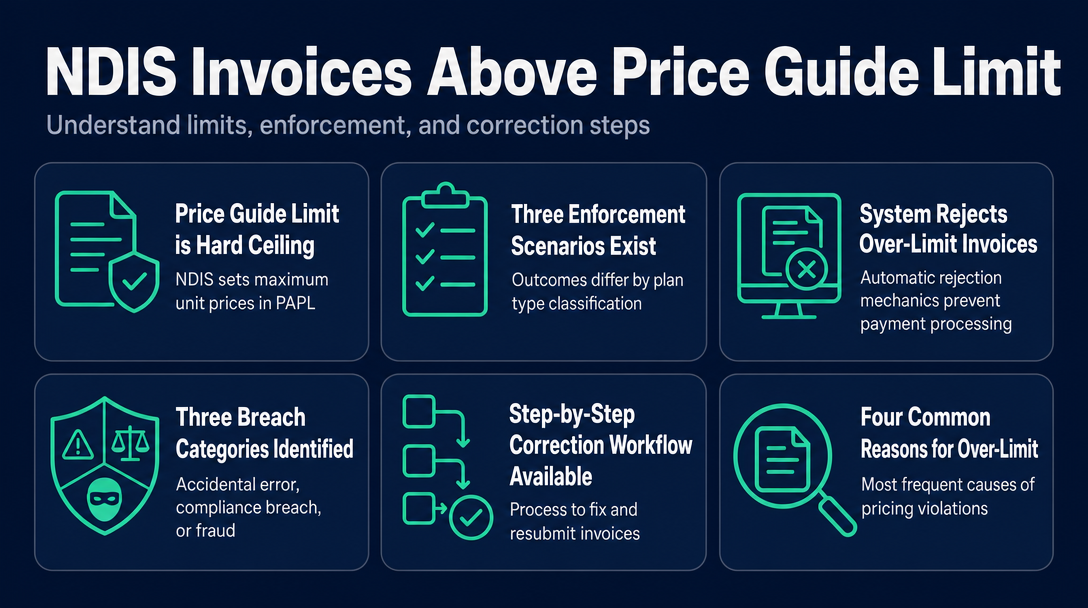
If your NDIS invoice includes a unit price above the maximum set in the NDIS Pricing Arrangements and Price Limits (PAPL), the outcome depends on how the participant's plan is managed. For NDIA-managed plans, the myplace portal rejects the claim automatically. For plan-managed plans, the plan manager is obligated to refuse payment. For self-managed plans, there is no automatic enforcement - but the participant absorbs the overcharge from their own NDIS budget. The fix, and the compliance risk, differ at each stage.
Why the NDIS Price Guide Limit Exists - and Why It Is a Hard Ceiling
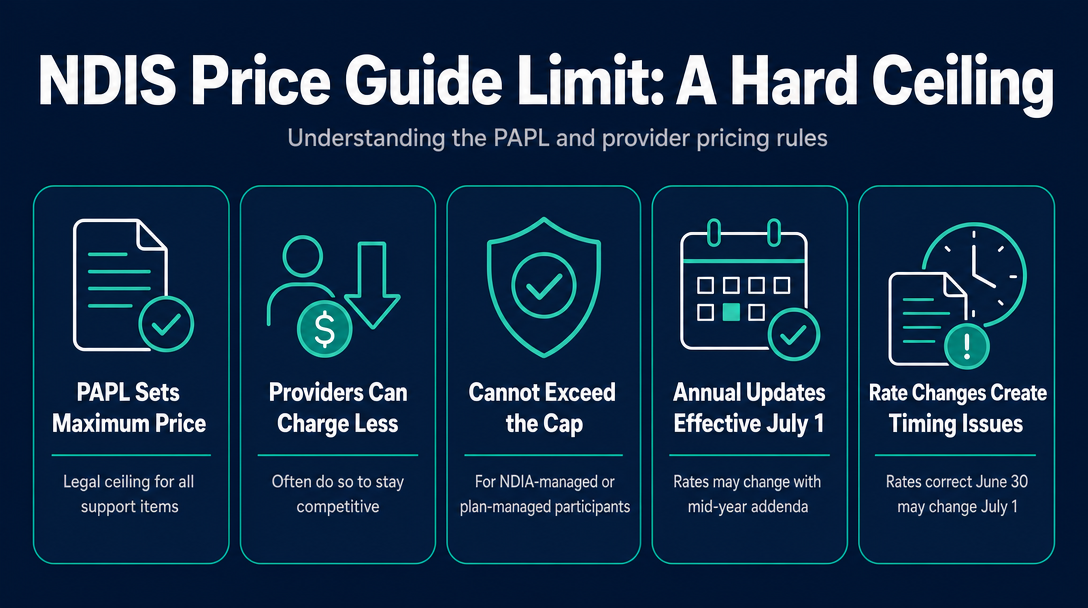
The PAPL sets a maximum price for every support item in the NDIS Support Catalogue. For registered providers, this is not a guideline or a suggested rate - it is a legal ceiling. Providers may charge less than the cap (and often do, to stay competitive), but they cannot charge more to NDIA-managed or plan-managed participants.
The PAPL is updated annually, effective 1 July each year, with any mid-year amendments published as addenda. That means a rate that was correct on 30 June may be technically wrong on 1 July - or, more commonly, a rate that sat just below the old cap may now sit above the revised one if the ceiling shifted.
To look up the specific price cap for your support item code, see the guide to the NDIS Price Guide 2026-27 on this site.
The Three Enforcement Scenarios - How "Above the Limit" Plays Out Differently by Plan Type
The single most important thing to understand about over-limit invoicing is that the enforcement mechanism changes completely depending on how the participant manages their plan.
| Plan Management Type | Price Cap Applies? | Who Enforces? | What Happens If Invoice Exceeds the Cap? |
|---|---|---|---|
| NDIA-managed | Yes - hard cap for registered providers | myplace portal (automated) | Claim rejected immediately; provider must correct and resubmit |
| Plan-managed | Yes - cap applies regardless of provider registration | Plan manager (manual review) | Plan manager cannot process the invoice; contacts provider for a corrected version |
| Self-managed | No enforcement mechanism | No third party - participant decides | Invoice may be paid, but the participant absorbs the overcharge from their NDIS budget |
NDIA-Managed: Automatic Portal Rejection
For NDIA-managed participants, the rejection is instant and non-negotiable. The myplace provider portal compares the unit price on each payment request line against the PAPL maximum for that support item. If the price exceeds the cap by any amount - even a few cents - the claim is rejected before any payment is processed. The provider must correct the line item and resubmit.
Plan-Managed: Plan Manager Must Refuse Payment
For plan-managed participants, the invoice is reviewed by the plan manager before any funds move. Plan managers are legally obligated under the NDIS rules to refuse payment on any line that exceeds the PAPL cap. This applies even when the provider is unregistered - a common misconception is that unregistered providers fall outside the price cap for plan-managed participants. They do not. The plan manager contacts the provider, requests a corrected invoice at or below the cap, and only then processes payment.
Self-Managed: No Enforcement, but the Participant Pays the Gap
Self-managed participants have no third-party gatekeeper checking unit prices before payment. A provider can, in a service agreement with a self-managed participant, agree to charge above the PAPL rate. However, the participant pays the full amount from their own NDIS allocation - depleting their budget faster than planned. This is often misread as "self-managed means no rules." The correct reading is: no automated enforcement mechanism, but the financial consequence lands entirely on the participant.
For a full comparison of how the three plan management types work, see the NDIS Plan Management Explained guide on this site.
What the System Does When Your Invoice Exceeds the Limit - The Rejection Mechanics
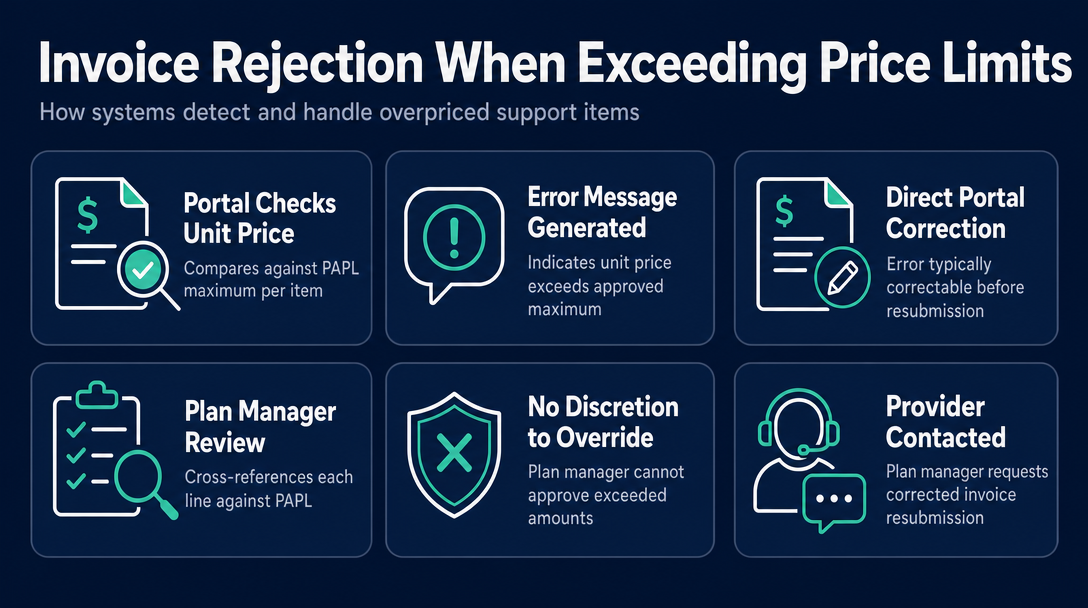
For NDIA-managed claims via myplace portal: The portal checks the unit price on each line of a payment request against the PAPL maximum for that support item, location classification, and time-of-day band. When the unit price on a submitted claim exceeds the approved maximum, the portal returns an error indicating the unit price exceeds the price of the support line item approved in the pricing arrangement. The NDIS guidance on troubleshooting claims confirms this error type can typically be corrected directly in the portal before resubmission.
For plan-managed claims: The invoice lands with the plan manager, who cross-references each line against the PAPL before authorising any payment. When a line exceeds the cap, the plan manager cannot approve it - they have no discretion to waive the limit - and will contact the provider to issue a corrected invoice.
The most common triggers for an over-limit error are:
- Using the prior year's PAPL rates after 1 July without updating
- Applying a remote or very remote loading to a participant whose location is classified as metropolitan
- Coding a weekend, evening, or public holiday rate to a shift that was delivered on a standard weekday
- Manual rounding errors when calculating rates (multiplying per-minute rates by minutes, then by hours, can produce a figure a few cents above the PAPL maximum)
Accidental Error vs. Compliance Breach vs. Fraud - Knowing the Difference
Not every over-limit invoice carries the same consequence. The NDIS distinguishes between three levels, and where your situation falls determines the appropriate response.
Accidental billing error (non-compliance): Using an outdated rate or the wrong location loading in good faith - for example, applying 2025-26 PAPL rates to an invoice raised in August 2026. This is non-compliance, not fraud. The obligation is to correct the error immediately on discovery and, if payment was already made at the inflated rate, to contact the plan manager or NDIA proactively to arrange repayment of the overcharge.
Systematic compliance breach: Repeatedly charging above price limits, even without fraudulent intent, triggers NDIS Commission intervention. The NDIS Code of Conduct includes fair pricing rules - updated following 2023 amendments - which prohibit unjustified price differentiation for NDIS participants. The NDIS Commission's enforcement powers include issuing warning letters, imposing financial penalties, and revoking a provider's registration.
Fraud: Intentionally invoicing for services not delivered, or knowingly charging rates above the cap, is a criminal matter. Overcharging that is deliberate crosses from a compliance issue into fraud against the scheme.
The scale of the problem prompted the Australian Government to establish the NDIS Fair Price and Australian Consumer Law Taskforce - a collaborative initiative involving the NDIS Commission and the ACCC. The Taskforce received nearly 3,000 complaints since its inception, and to date the NDIS Commission has resolved more than 85 per cent of those pricing-related matters, primarily through warning letters and provider education. Where education is insufficient, the Commission has the authority to impose fines, issue banning orders, and revoke provider registration.
The practical guidance is straightforward: if you discover an error, disclose it proactively. The Commission's compliance framework treats self-disclosure of an accidental error very differently from a repeat pattern or deliberate concealment.
How to Fix an Over-Limit Invoice - A Step-by-Step Correction Workflow
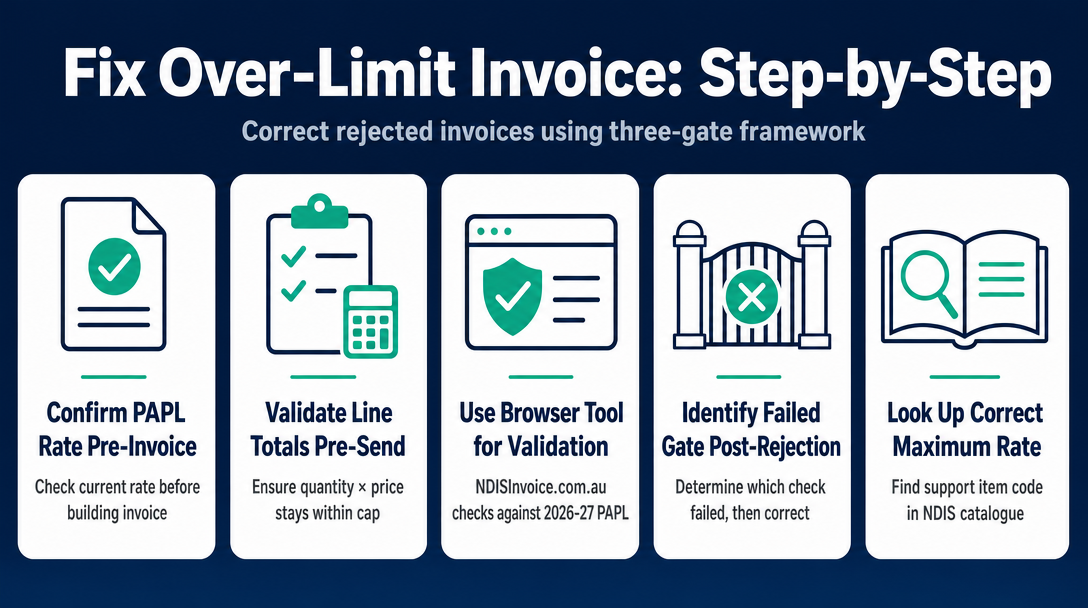
Before walking through the correction steps, it is worth naming the framework that prevents this situation from arising in the first place: the Three-Gate Price-Cap Check.
- Gate 1 (Pre-invoice): Confirm the current PAPL rate for the specific support item, location classification, and time-of-day band before you build the invoice.
- Gate 2 (Pre-send): Validate each line total against the PAPL cap (quantity x unit price must not exceed the PAPL maximum). A tool like NDISInvoice.com.au runs this check in your browser, against the current 2026-27 PAPL, before the invoice leaves your hands.
- Gate 3 (Post-rejection): If a rejection does occur, identify which gate failed and correct it before resubmitting.
If you are already at Gate 3, here is the correction workflow.
Step 1 - Identify the correct maximum rate
Open the current 2026-27 PAPL on the official NDIS website. Look up your support item code in the NDIS Support Catalogue and confirm the exact price cap for your line item, your participant's location classification (national, remote, very remote), and the correct time-of-day band for the shift. Do not rely on a saved rate from a previous year's PAPL.
Step 2 - Issue a corrected invoice
Create a new invoice, or a credit note paired with a revised invoice, with the unit price adjusted to the PAPL maximum (or below). The corrected invoice must reference the original invoice number and clearly state it is a correction - for example: "Corrected invoice replacing Invoice #[original number] dated [date]; unit price adjusted to $[corrected amount] per the 2026-27 PAPL for support item [code]."
Step 3 - Notify the plan manager or participant
For plan-managed participants: send the corrected invoice to the plan manager with a brief cover note explaining the correction. For NDIA-managed participants: the correction is handled inside the myplace portal (see Step 4).
Step 4 - For NDIA-managed claims - resubmit in myplace portal
Cancel the rejected payment request. Enter the corrected unit price at or below the PAPL maximum and resubmit. The NDIS guidance confirms that most over-limit claim errors of this type can be corrected and resubmitted directly in the portal without raising a new claim from scratch.
Step 5 - Update your rate template immediately
If the error was caused by an outdated PAPL: update your invoice template, rate sheet, or invoicing tool now. The PAPL updates on 1 July each year - set a calendar reminder for early July to verify your rates before invoicing in August.
Step 6 - If payment was already made at the over-limit rate
Contact the plan manager or NDIA immediately and do not wait for the discrepancy to be flagged by the other party. Proactive self-disclosure is treated as non-compliance under the NDIS Commission's framework. Waiting for it to be discovered - or ignoring it - risks escalation toward a compliance breach or fraud investigation.
The Four Most Common Reasons Providers End Up Above the Limit
Most over-limit invoices trace back to one of four causes. Identifying which one applies helps you close the gap permanently.
1. Using the prior year's PAPL rates after 1 July
This is the most common cause. Rates change on 1 July and the window between the end of one financial year and the first invoices of the new year is the highest-risk period. A rate card or invoice template built on last year's figures may produce an over-limit invoice on the very next job. Fix: always confirm your rates against the current PAPL before your first invoice of the new financial year.
2. Applying a remote or very remote location loading to a metro participant
Remote and very remote loadings add a significant percentage to the national rate. When that loading is applied to a participant whose location is classified as metropolitan, the result is almost always an invoice above the national cap. Fix: confirm the participant's location classification before applying any loading.
3. Coding the wrong time-of-day classification
Applying an evening, weekend, or public holiday rate to a shift that was delivered during standard weekday hours will produce a unit price above the weekday cap. For detailed guidance on matching shifts to the correct rate classification, see the guide to weekday vs. evening vs. weekend vs. public holiday NDIS rates on this site.
4. Manual rounding errors in rate calculations
Calculating rates manually - particularly when converting between per-minute and per-hour rates - can produce a figure that sits a few cents above the PAPL maximum. A validated invoicing tool that calculates directly from the official PAPL figures eliminates this error type entirely.
Frequently Asked Questions
Can I charge self-managed participants above the NDIS price limit?
A provider can agree in a service agreement with a self-managed participant to charge above the PAPL rate - there is no automated enforcement mechanism that will block the payment. However, the participant pays the full amount from their own NDIS budget allocation, which depletes their plan faster than it would at the capped rate. Providers should be transparent about any above-cap pricing in the service agreement, and should be aware that unjustified price differentiation for NDIS participants may constitute a breach of the NDIS Code of Conduct.
My invoice was rejected for exceeding the price cap - do I need to cancel it entirely or can I just edit the unit price?
For NDIA-managed claims in the myplace portal, you can typically cancel the rejected payment request, correct the unit price to the PAPL maximum, and resubmit without raising a new claim from scratch. For plan-managed claims, issue a corrected invoice (or a credit note paired with a revised invoice) at the correct rate and send it to the plan manager with a note referencing the original invoice number and explaining the correction.
Is accidentally invoicing above the price limit the same as NDIS fraud?
No. The NDIS distinguishes between an accidental billing error (non-compliance) and fraud (intentionally claiming for services not delivered or knowingly overcharging). An honest mistake - such as using an outdated PAPL rate after 1 July - is non-compliance, not fraud, provided it is corrected promptly. Systematic or repeated overcharging, even without fraudulent intent, can escalate to a compliance breach handled by the NDIS Commission. Deliberate overcharging is treated as fraud, which is a criminal matter.
How do I find the correct price cap for a specific support item?
Look up the support item code in the NDIS Support Catalogue, part of the current Pricing Arrangements and Price Limits document published on the official NDIS website (ndis.gov.au). The cap varies by support item, location classification (national, remote, very remote), and time-of-day band. For a walkthrough of how to search the document, see the NDIS Price Guide 2026-27 guide on this site.
Catch Over-Limit Prices Before They Cause a Rejection
The Three-Gate Price-Cap Check only works reliably if Gate 2 - the pre-send validation - is automated rather than manual. NDISInvoice.com.au validates every line item against the current 2026-27 NDIS Pricing Arrangements and Price Limits directly in your browser. If a unit price exceeds the PAPL cap for a support item, the tool flags it before the invoice leaves your hands - eliminating the most common cause of rejected claims before the plan manager or myplace portal ever sees it.
Validate and create your NDIS invoice now - it's free at NDISInvoice.com.au
More articles
- How to Create Your First NDIS Invoice in Under 5 Minutes (Step-by-Step Video Companion)
- NDIS Plan Manager Turnaround Times: How Long Should You Wait to Be Paid After Submitting an Invoice?
- NDIS Invoice Numbering: Do You Need a Sequential System? (And What Happens If You Don't Have One)
- How to Handle a Rejected NDIS Invoice: Diagnosis, Correction, and Resubmission Step by Step
- NDIS Allied Health Invoicing: How Physiotherapy, Speech Therapy, and OT Codes Work in the Price Guide