How to Create Your First NDIS Invoice in Under 5 Minutes (Step-by-Step Video Companion)
Written by Cory Nathan, founder of NDIS Invoice · Last reviewed
Creating an NDIS invoice correctly the first time matters more than most new providers expect. A single wrong field - an outdated support item code, a
17 min read
How to Create Your First NDIS Invoice in Under 5 Minutes (Step-by-Step Video Companion)
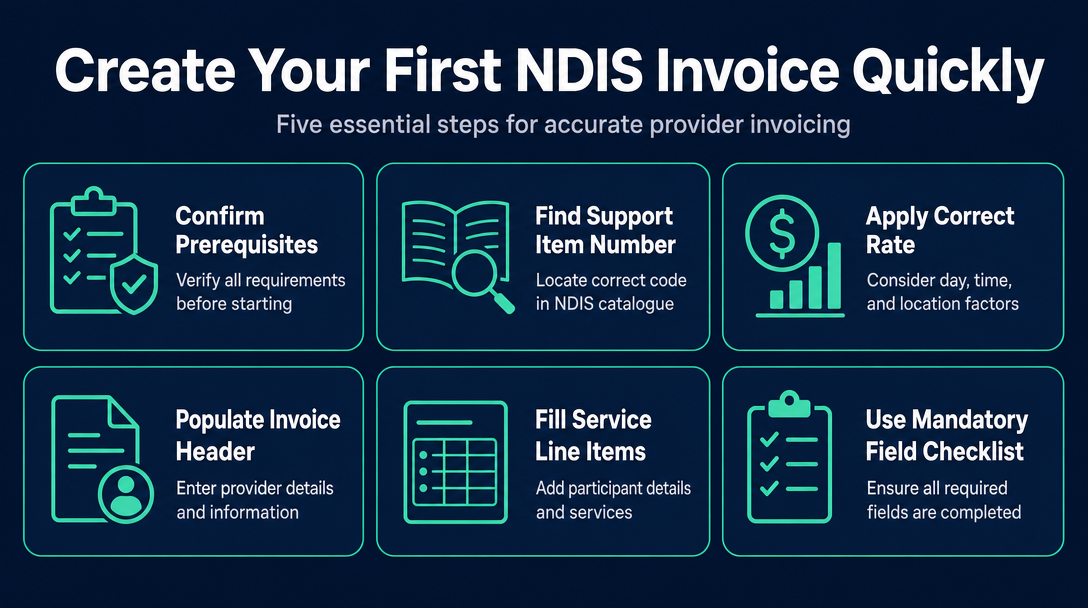
Creating an NDIS invoice correctly the first time matters more than most new providers expect. A single wrong field - an outdated support item code, a price $0.50 above the current cap, or a weekday rate applied to a Sunday shift - is enough for a plan manager to reject the invoice entirely. This guide walks through every field in the order you actually complete them, using the "Build-Validate-Route" sequence: Build your invoice (Steps 1-5), Validate every line item before sending (Steps 6-7), and Route it to the right recipient (Step 8).
For the full deep-dive on NDIS-compliant invoice structure, see The Complete Guide to Creating a Free NDIS-Compliant Invoice with NDISInvoice.com.au. This article is the quick-start companion - practical, field-level, and designed to get your first invoice out the door fast.
NDIS Invoice Mandatory Field Checklist
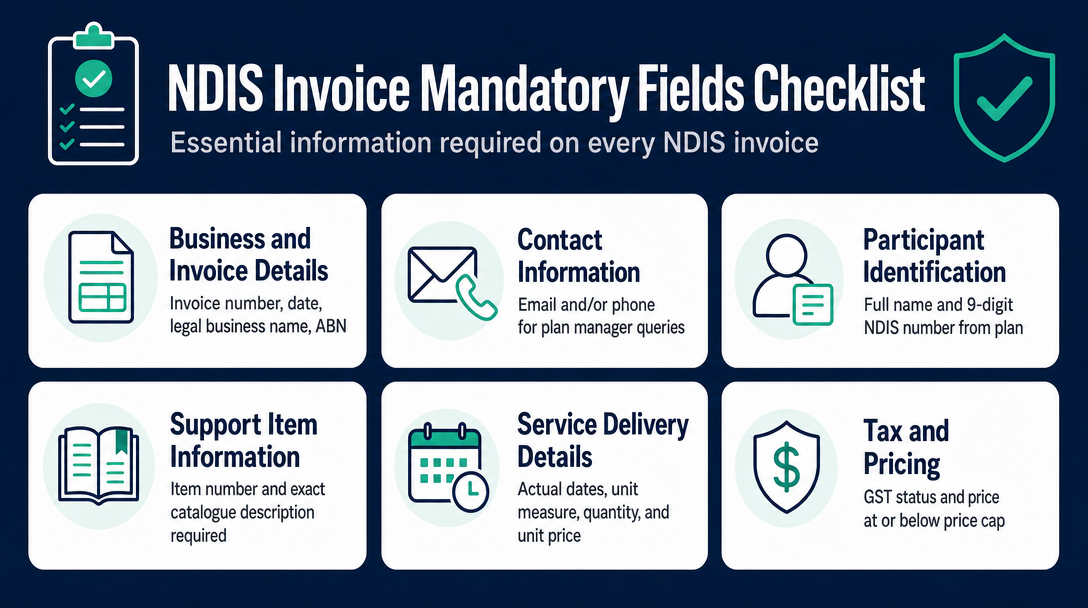
Use this table as your at-a-glance reference before you start. Every field below must appear on every invoice you send.
| Field | What to Enter |
|---|---|
| Invoice number | A unique identifier not used before |
| Invoice date | The date you are issuing the invoice |
| Your legal business name | Exactly as registered on the ABN register |
| Your ABN | 11-digit number from the Australian Business Register |
| Your contact details | Email and/or phone for plan manager queries |
| Participant full name | Exactly as it appears on their NDIS plan |
| Participant NDIS number | 9-digit number from their plan or welcome letter |
| Support item number | From the current NDIS Support Catalogue |
| Support item description | Copy the wording from the catalogue exactly |
| Service delivery date(s) | The actual date(s) the support was delivered |
| Unit of measure | H (hour), EA (each), or D (day) - from the catalogue |
| Quantity | Hours worked, sessions delivered, days, etc. |
| Unit price | At or below the price cap in the Pricing Arrangements |
| GST status | "GST Free" - include this statement on every line |
| Line total | Quantity multiplied by unit price |
| Invoice total | Sum of all line totals |
| Your bank details | BSB and account number for EFT payment |
Step 1 - Confirm Your Prerequisites Before Opening a Blank Invoice
Three things must be in place before you write a single field. Skipping this check is the reason many invoices fail before they are even built.
Do you have a signed service agreement?
A service agreement - or at minimum a written quote the participant has accepted - is the legal basis for your claim. Plan managers can legitimately dispute an invoice that has no underlying written agreement. Before you start: confirm the agreement is signed, note the support type it covers, and confirm the delivery date falls within the agreement period. The agreement also directly affects your GST-free status (explained in Step 6).
Do you have the participant's NDIS number?
This is the 9-digit number printed on the participant's NDIS plan or welcome letter from the NDIA. Plan managers will reject an invoice that is missing it outright - there is no workaround. If you do not have it, ask the participant or their nominee before you start.
Is your ABN active?
Check that your ABN is active and that your GST registration status is current at ABN Lookup. An invoice issued against a cancelled ABN is not legally valid, and plan managers check this. If your details have changed recently, allow time for the register to update before invoicing.
Step 2 - Find the Right Support Item Number in the NDIS Support Catalogue
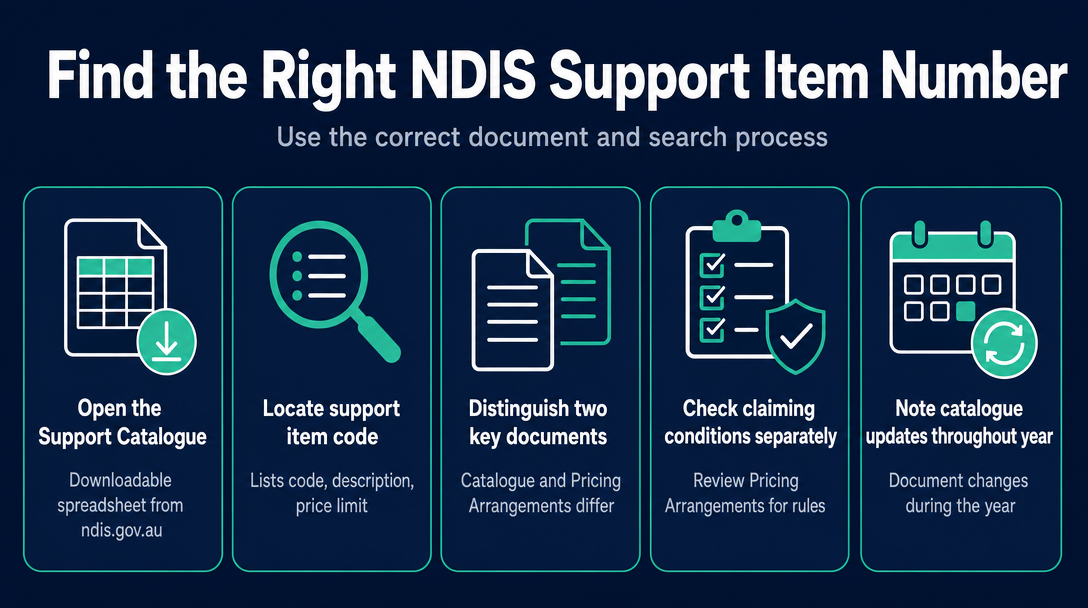
This is the step most guides gloss over. Finding the correct support item number is not guesswork - there is a specific document to open and a specific search process to follow.
The Support Catalogue and the Pricing Arrangements are two different documents
Many providers confuse these, and it causes real errors.
The NDIS Support Catalogue is a downloadable spreadsheet (Excel or CSV) published by the NDIA on ndis.gov.au. It lists every supported line item with its code, description, unit of measure, price limit, and effective dates. This is the document you open to find your support item number.
The NDIS Pricing Arrangements and Price Limits document is the rules document. It tells you the conditions under which you can claim - for example, whether travel can be added to a shift, how short-notice cancellations work, and what provider ratio rules apply. You need to read both: the catalogue to find the code and the cap, and the Pricing Arrangements to confirm the claiming conditions.
Critically, the Support Catalogue is updated during the year - not just on 1 July. A code that was valid six months ago may have an end date in the catalogue today. Always download the current version directly from ndis.gov.au before invoicing.
How to search the catalogue step by step
- Open the Support Catalogue spreadsheet in Excel or Google Sheets.
- Press Ctrl+F (Windows) or Cmd+F (Mac) and search by a keyword from your service description - for example, "assistance with daily life" or "community participation."
- Identify the correct registration group that matches your service type.
- Check the unit of measure column: H means per hour, EA means each (per session or shift), D means per day. The unit you record on your invoice must match what the catalogue specifies - if the catalogue says "H" and you invoice by session, your quantity and total will be wrong.
- Note the price limit - the maximum you can charge per unit. You may charge less; you may never charge more.
- Check the effective end date column. If the item has an end date that has passed, do not use it - find the current replacement code.
If you deliver supports in a remote or very remote area, the catalogue also contains loading columns that affect your price cap. See NDIS Remote and Very Remote Pricing: How the Modified Monash Model Affects What You Can Charge for how those columns work.
Step 3 - Apply the Correct Rate: Day, Time, and Location All Matter
This is the silent error that trips up even experienced providers. The support item number and price cap for many support types change depending on when the support was delivered - not just what type it was.
Why the same support can have four different item codes
For many Core Supports - particularly Assistance with Daily Life and Community Participation - the NDIS Support Catalogue lists separate support item codes for:
- Weekday (standard hours, typically Monday to Friday)
- Evening (weekday, outside standard hours)
- Saturday
- Sunday
- Public holiday
If you delivered a shift on a Sunday, there is a distinct support item number in the catalogue for that Sunday rate. It is a different code from the weekday equivalent - not the same code with a different price applied on top. Your invoice line must use the Sunday code, not the weekday code, even if the type of support was identical.
The correct process: identify the day and time the support was delivered first, then find the matching code in the catalogue for that day/time combination. Do not look up the support type generically and assume one code covers all scenarios.
What happens if you use the wrong day/time code
If you charge a Sunday rate for a weekday shift, a thorough plan manager will flag it as overcharging - which can be treated as a compliance issue, not just an administrative error. If you charge a weekday rate for a public holiday shift, you are undercharging and leaving money on the table. Neither outcome is acceptable, and neither is recoverable without resubmitting a corrected invoice (a process covered in How to Handle a Rejected NDIS Invoice: Diagnosis, Correction, and Resubmission Step by Step).
Step 4 - Populate the Invoice Header and Your Provider Details
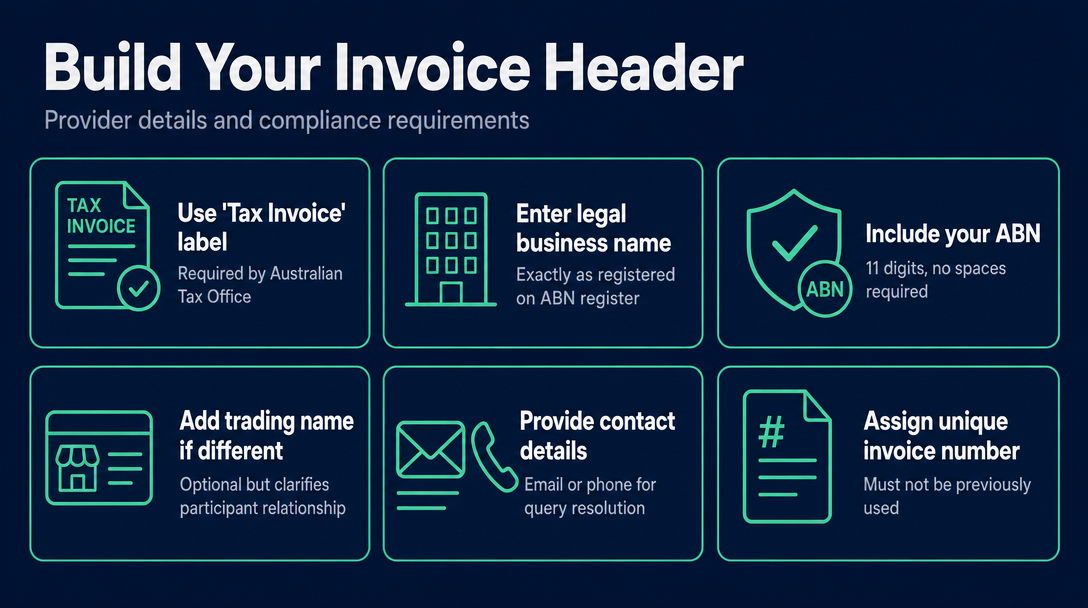
With the correct support item codes identified, you can now build the invoice. Start with the top section - your details as the provider.
- "Tax Invoice" label: These exact words must appear at the top of every invoice, even when no GST is being charged. This is an Australian Tax Office requirement under the GST legislation. A document headed "Invoice" alone is not technically a tax invoice.
- Your legal business name: Exactly as it appears on the ABN register at abr.business.gov.au. For sole traders, this is your personal name, or your registered business name if you have one.
- Your ABN: 11 digits. No spaces required, though either format is readable.
- Your trading name: Optional, but useful if the name your participant knows differs from your legal entity name.
- Your contact email and/or phone: Plan managers need a direct contact to resolve queries. Without it, your invoice joins a rejection queue rather than a query queue - a meaningful difference for your cash flow.
- Invoice number: A unique identifier not previously used. Use a system that works for you. For a detailed treatment of numbering approaches and what the rules actually require, see NDIS Invoice Numbering: Do You Need a Sequential System? - this article covers one sentence on the topic and moves on.
- Invoice date: The date you are creating and sending the invoice.
Step 5 - Fill In Participant Details and Service Line Items
This is the body of the invoice - the section plan managers spend the most time reviewing.
Participant information block
- Participant's full name (as on their NDIS plan - middle names included if that is how the plan reads)
- Participant's 9-digit NDIS number
- For plan-managed participants: the plan manager's name and their invoicing email address
- For self-managed participants: the participant's own contact details
Building each service line item correctly
Each line represents one type of support, on one code, for one date or date range. Use this structure:
| Column | What to Enter | Where to Get It |
|---|---|---|
| Support item number | Exact code from the Support Catalogue | Step 2 |
| Description of support | Copy the exact wording from the catalogue | Support Catalogue |
| Service delivery date | The date the support was actually delivered | Your shift records |
| Start time / end time | Specific times where required | Your shift records |
| Unit of measure | H, EA, or D - from the catalogue | Step 2 |
| Quantity | Hours worked, sessions, or days | Calculate from start/end or session count |
| Unit price | At or below the price cap | Catalogue price limit |
| GST | "GST Free" - see Step 6 | Step 6 |
| Line total | Quantity multiplied by unit price | Calculate or auto-fill |
If a participant received more than one type of support in the billing period, each type gets its own line with its own support item number. Never combine different support types on a single line - the plan manager cannot validate a bundled entry.
Can you include travel on the same invoice?
Yes - if the support item in the catalogue allows provider travel claims, travel appears as a separate line item with its own support item number. The specific conditions under which travel can be claimed (and the applicable rate) are set out in the Pricing Arrangements document, not the catalogue. Check those conditions for your specific support type before adding a travel line.
Step 6 - Handle GST Correctly
Most competitors note that NDIS supports are "GST free" and move on. What they do not explain is the legal basis, the exact wording to use, or the compliance trap that catches sole traders at tax time.
Four conditions that make an NDIS support GST-free
All four must be satisfied for the supply to be GST-free under section 38-38 of the A New Tax System (Goods and Services Tax) Act 1999:
- The participant has an NDIS plan currently in effect.
- The support is specified in that plan.
- There is a written agreement between you and the participant (or their representative) covering the supply.
- The support type is listed in the relevant Ministerial determination.
Most Core Supports and daily living supports meet all four conditions. If you are uncertain about a specific support type, the NDIS Pricing Arrangements document will confirm whether the supply qualifies.
What to actually write on the invoice
On each line item, write "GST Free" or "$0.00 GST" in the GST column.
At the bottom of the invoice, include this statement: "All supplies on this invoice are GST-free disability supports under section 38-38 of the A New Tax System (Goods and Services Tax) Act 1999."
This wording matters. A plain "$0.00 GST" with no explanation leaves the plan manager without confirmation of the legal basis, which can generate a query even when the invoice is otherwise correct.
The GST registration situation for sole traders
Even if all your services are GST-free, you are still required to register for GST if your annual turnover exceeds the $75,000 threshold set by the ATO. Being GST-registered does not change how your invoices look to participants or plan managers - the line items still read "GST Free." The practical difference is that registration lets you claim input tax credits on your business purchases; without registration, you cannot. This is an ATO obligation, not an NDIS one - check ato.gov.au for current registration requirements.
Step 7 - Validate Every Line Item Against the Current Pricing Arrangements Before Sending
Validation is a formal step, not an afterthought. Skipping it is the reason many otherwise well-built invoices come back rejected.
The three errors most likely to get your invoice rejected on first submission
- Outdated support item code - the Support Catalogue is updated during the year; a code that was valid on your last invoice may now be deprecated.
- Price above the current cap - even a small overage above the price limit triggers rejection by a diligent plan manager.
- Wrong day/time classification - the incorrect code for the day the support was delivered (covered in Step 3).
How to validate manually
- Open the current Support Catalogue (download a fresh copy from ndis.gov.au today - not the version from last month).
- Locate each support item number you used.
- Confirm the effective end date column does not show a past date.
- Confirm your unit price is at or below the price limit.
- Confirm the unit of measure matches how you calculated your quantity.
For a single invoice with two line items, this takes a few minutes. For multiple invoices across multiple participants, it becomes time-consuming and error-prone.
Using NDIS Invoice (the faster way)
NDIS Invoice is a free, browser-based tool that validates each line item against the current NDIS Pricing Schedule in real time - before you send. It checks the support item code, the price cap, and the day/time classification, and flags errors on screen so you can correct them before the invoice leaves your desk. Your invoices and clients are saved to your account and stored in Sydney, Australia. No card, no monthly fee during launch.
If an invoice still comes back rejected after you have validated it, see How to Handle a Rejected NDIS Invoice: Diagnosis, Correction, and Resubmission Step by Step for the correction and resubmission process.
Step 8 - Send the Invoice to the Right Recipient
Where the invoice goes depends on how the participant's NDIS plan is managed. Your plan management type affects where the invoice goes - a full side-by-side format comparison is in How NDIS Funding Types Affect Your Invoice Format. Here is the short version:
- Plan-managed participant: Email the invoice to the participant's plan manager's invoicing address. Some plan managers use a dedicated portal (ask the participant for the correct submission method before your first invoice - each plan manager has their own preference).
- Self-managed participant: Send the invoice directly to the participant or their nominee. They then make the payment claim through the myplace participant portal or the NDIS app using the information on your invoice.
- NDIA-managed participant: This pathway requires you to be a registered NDIS provider and submit via the myplace provider portal. This article does not cover that pathway - see Agency-Managed (NDIA-Managed) NDIS Invoicing: Why These Participants Can't Use Unregistered Providers for the full process.
Frequently Asked Questions
Do I need a service agreement before I can invoice?
Yes. A written agreement - or at minimum a written quote the participant has accepted - must be in place before you deliver supports and invoice for them. Without it, the GST-free conditions under section 38-38 of the GST Act may not be satisfied, and a plan manager has grounds to dispute the invoice. Get the agreement signed before the first support session, not after.
What if the participant's plan doesn't have enough funding left in the right support category?
Submit the invoice for what was actually delivered at the correct rate regardless. A funding shortfall is a plan management issue, not an invoicing error. The plan manager or participant will advise you of the shortfall. Do not reduce your invoice amount unilaterally without discussing the situation with the participant first.
Can I send one invoice covering multiple participants in the same email?
No. Each invoice must be issued per participant individually. Each participant has their own NDIS number and their own separate funding. Combining two participants on one document will result in rejection, and the plan manager cannot process a combined invoice even if they want to.
Do I include my bank details on every invoice?
Yes - for plan-managed and self-managed participants, your BSB and account number must appear on the invoice so EFT payment can be made directly to you. Without bank details, payment is not possible regardless of how quickly the invoice is approved.
What if I am a sole trader who is not GST-registered?
Your invoices still carry "GST Free" on every line item. The GST-free status of an NDIS support is determined by the nature of the supply and whether the four conditions under section 38-38 are met - it is not determined by whether you are personally GST-registered. The practical difference is that GST-registered providers can claim input tax credits on eligible business purchases; unregistered providers cannot. Your invoices to participants look the same either way.
Can I use any invoicing tool to create NDIS invoices?
Yes - there is no requirement to use NDIS-registered software to create or send invoices (unless you are a registered provider submitting directly through the myplace provider portal, which has its own process). The requirement is that the invoice contains the correct fields and complies with the current Pricing Arrangements - not that it was created in a specific application.
Put the Build-Validate-Route Sequence Into Practice
Every step above follows the same three-phase logic: build your invoice with the right fields, validate every line item against the current Pricing Schedule before it leaves your desk, then route it to the right recipient via the right method.
The validation step is where most first invoices fail - and it is the easiest to get right with the right tool. NDIS Invoice is a free, browser-based validator that checks your support item codes, price caps, and day/time classifications in real time. Use it on your next invoice before you hit send.
More articles
- NDIS Plan Manager Turnaround Times: How Long Should You Wait to Be Paid After Submitting an Invoice?
- NDIS Invoice Numbering: Do You Need a Sequential System? (And What Happens If You Don't Have One)
- How to Handle a Rejected NDIS Invoice: Diagnosis, Correction, and Resubmission Step by Step
- NDIS Allied Health Invoicing: How Physiotherapy, Speech Therapy, and OT Codes Work in the Price Guide
- NDIS Respite (Short-Term Accommodation) Invoicing: Codes, Rates, and Common Errors